Passing identity verification when signing the contract
1. After you have received the link to book the property, you will need to follow it and register. ( registration by phone - https://apartx.freshdesk.com/ru-RU/support/solutions/articles/150000007688-генерация-по-телофону; registration via telegram - https://apartx.freshdesk.com/ru-RU/support/solutions/articles/150000012614-генерация-через-телагмент-telegram- )
2. After completing the registration, in the window that opens, click on the " Proceed " button, then to confirm your identity, click on the " Next " button (see example below) 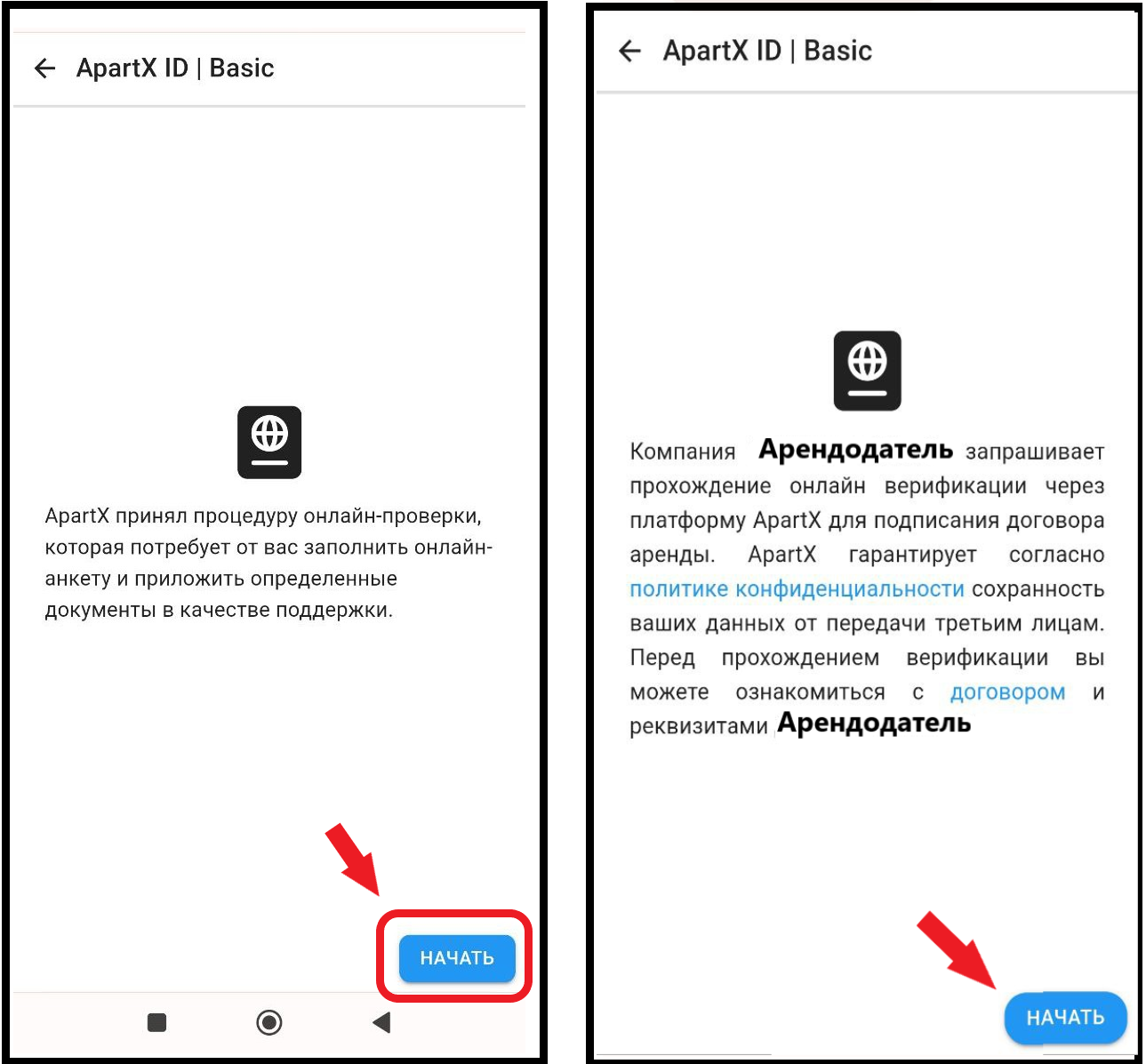
3. In the window that opens , you will need to select whether you are a resident of the Republic of Kazakhstan . * For non-residents of the country, the old verification method remains (see example below) . Further, under paragraphs 3.1/3.2, the old way of adding non-residents of the Republic of Kazakhstan remains. 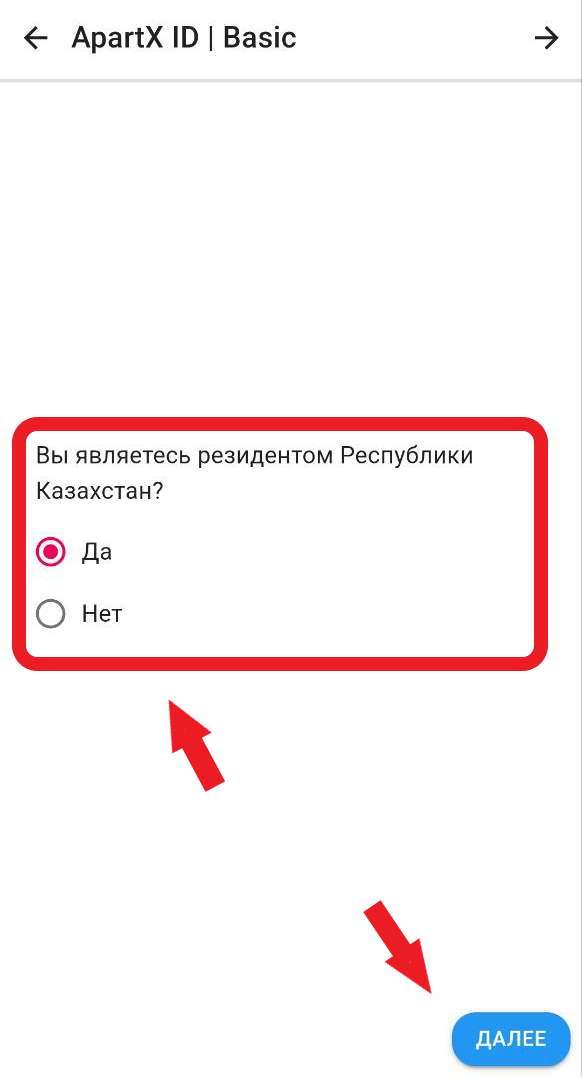
3.1 Next, in the window that opens, you will need to " Upload " or " Take a photo " of the front and back sides of the document that you selected earlier. After uploading the documents, click the " Next " button in the lower left corner of the application (see example below)
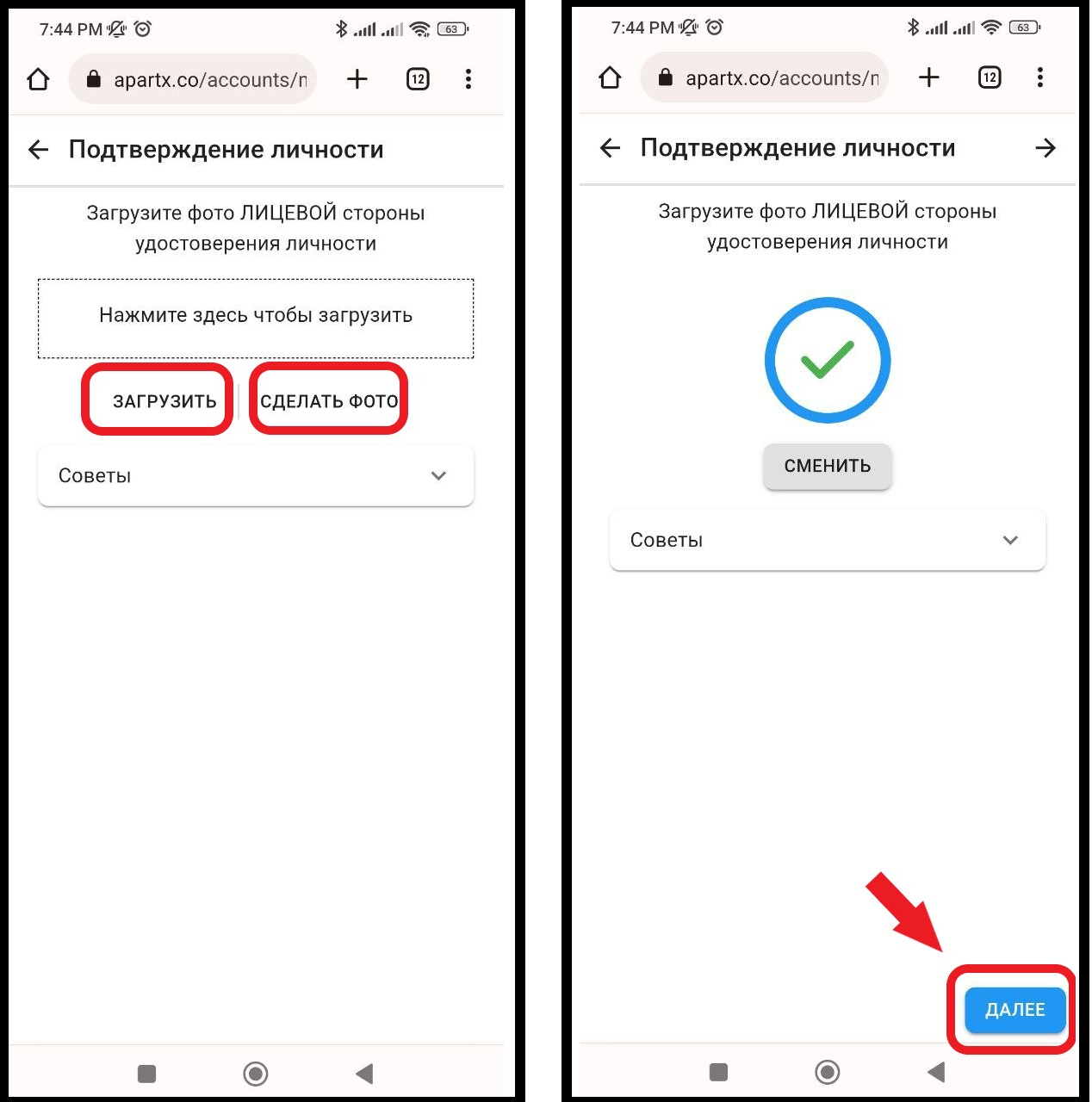
3.1.1 You will also need to take a selfie by clicking on the " Take a photo " button to accurately confirm your identity. To continue confirming your identity, click on the " Next " button (see example below) 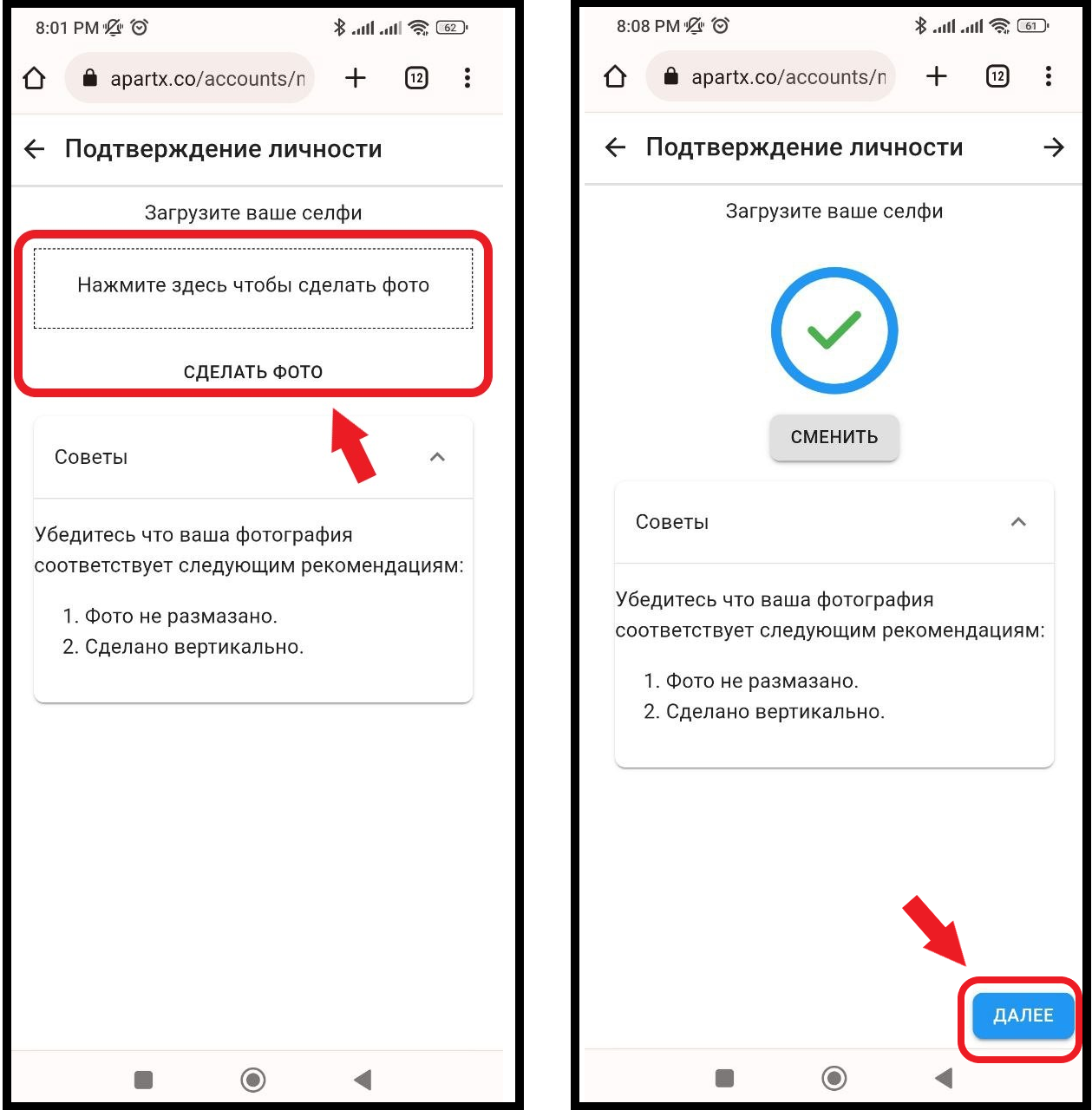
3.2. Next, in the window that opens, you will need to fill out the form and after filling out, click on the " Send " button. *Our system automatically inserts data from the uploaded documents, for more accurate information, double-check the data yourself. (see example below) 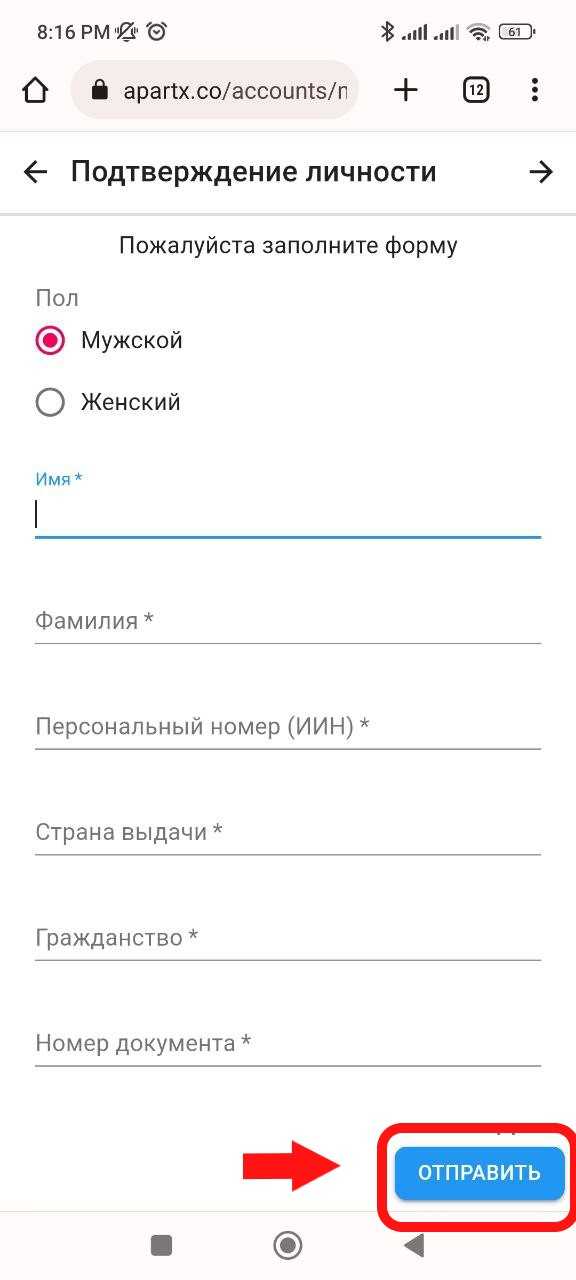
4. When selecting the Kazakhstan residents function, you will be redirected to the biometric identity verification page from Egov. You will need to look into the smartphone camera, enter your phone number and IIN, the rest of the data for this process will be pulled from the Egov system, everything will be filled in automatically. Verification is protected by the Republic of Kazakhstan, so there is no reason to worry about data leakage or transfer "to the side". You must enter the phone number that is attached to Egov 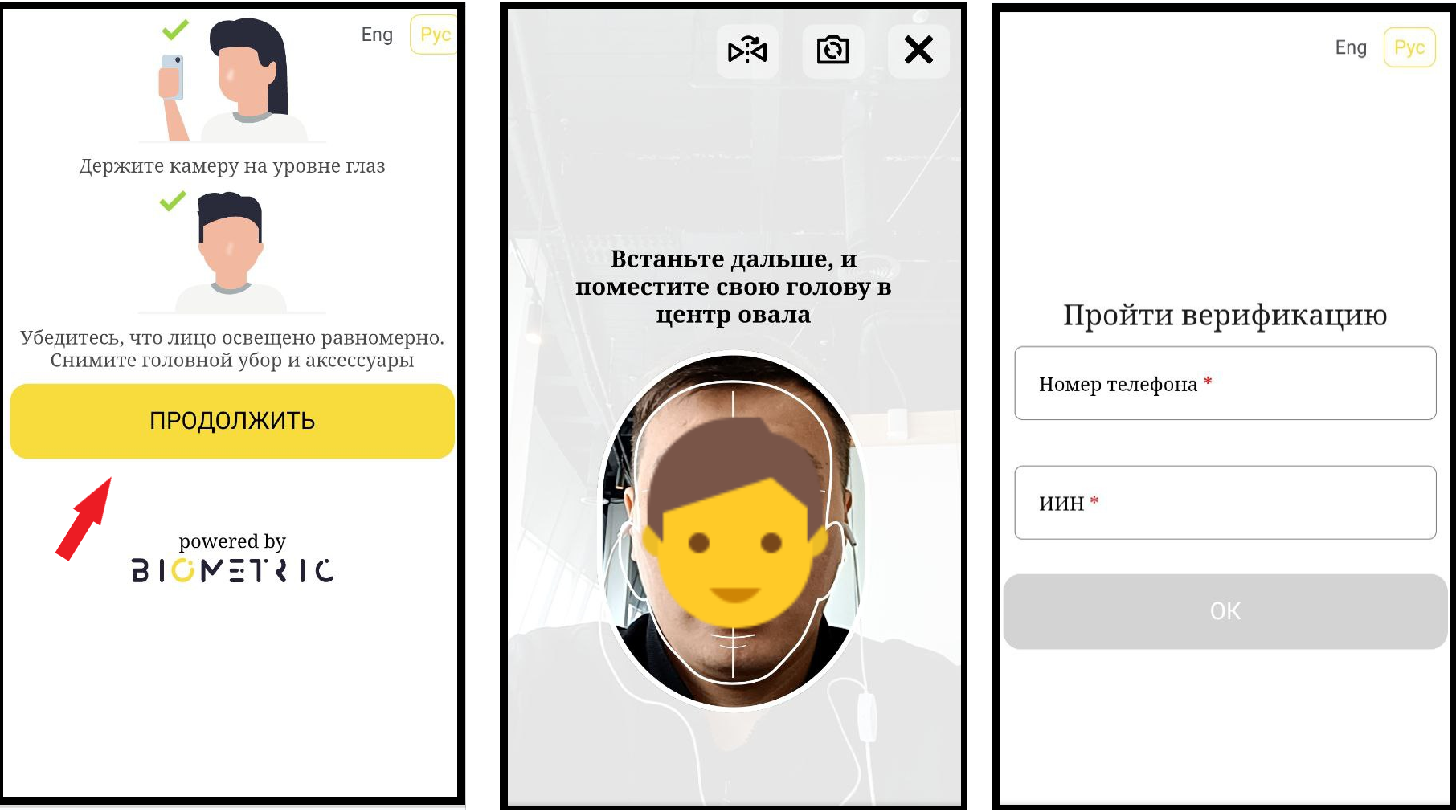
4.1 Next, you will receive an SMS with a confirmation code to provide access to the "ID Card". Enter the received code (see example below). Verification completed. 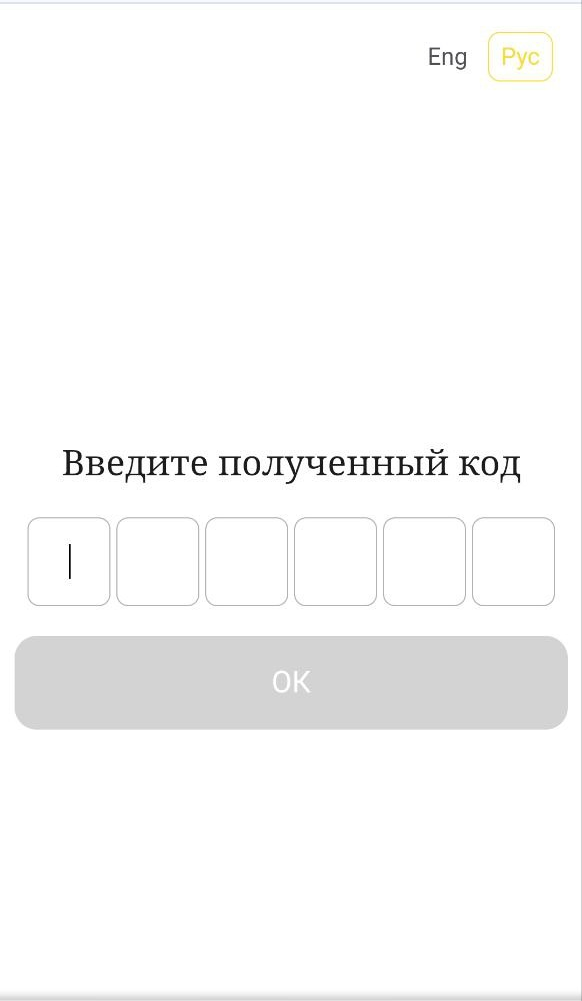
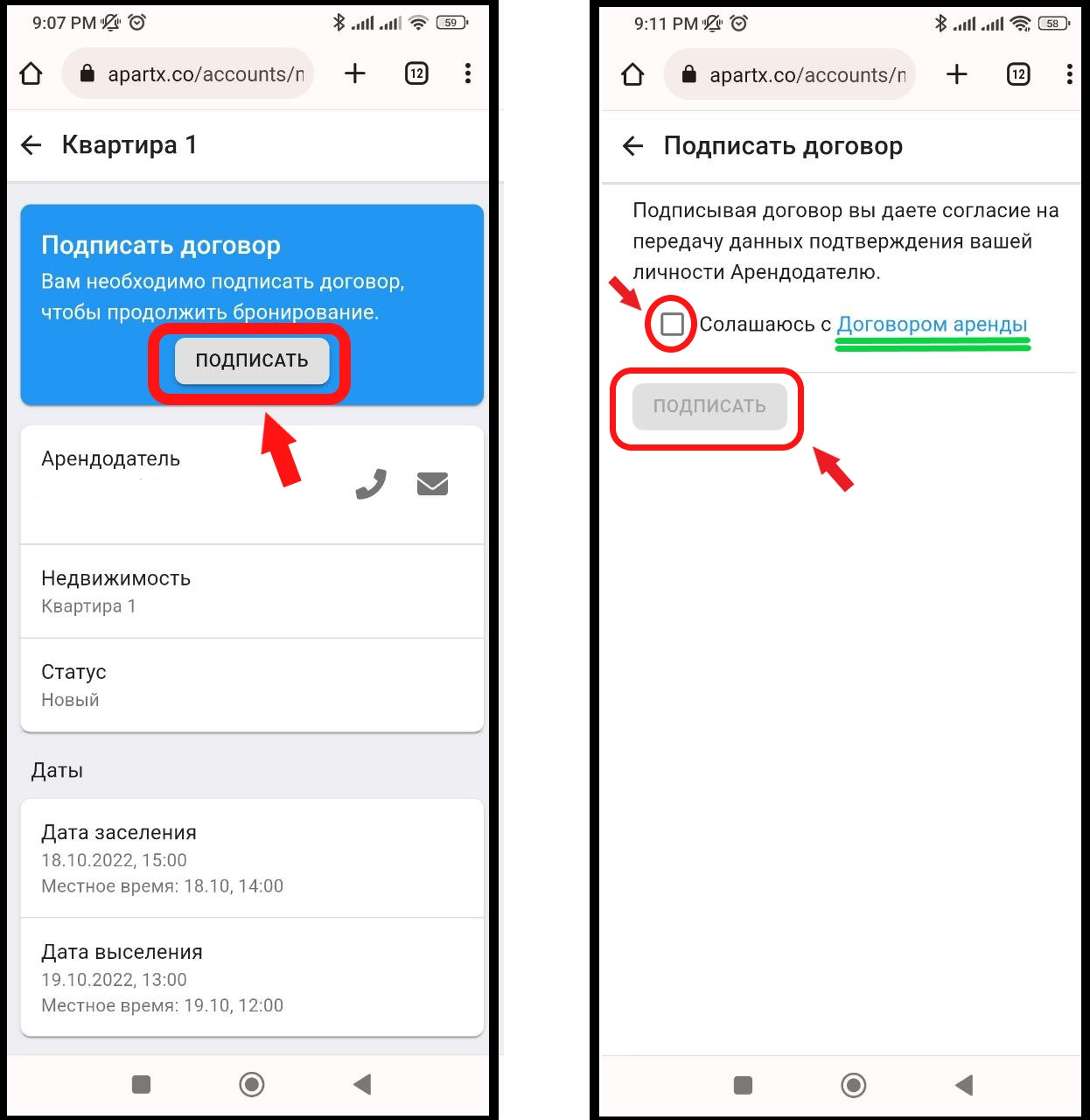
5. After you have filled in all the data, you will be redirected to the page about signing the agreement between you and the landlord, by clicking on the " Sign " button, a window will open where you can study the lease agreement itself by clicking on the title " Lease Agreement" . To sign the agreement itself, check the box "  ", then click on the active button " Sign ". Confirmation of identity and signing of the lease agreement is complete.