Booking with/without online payments
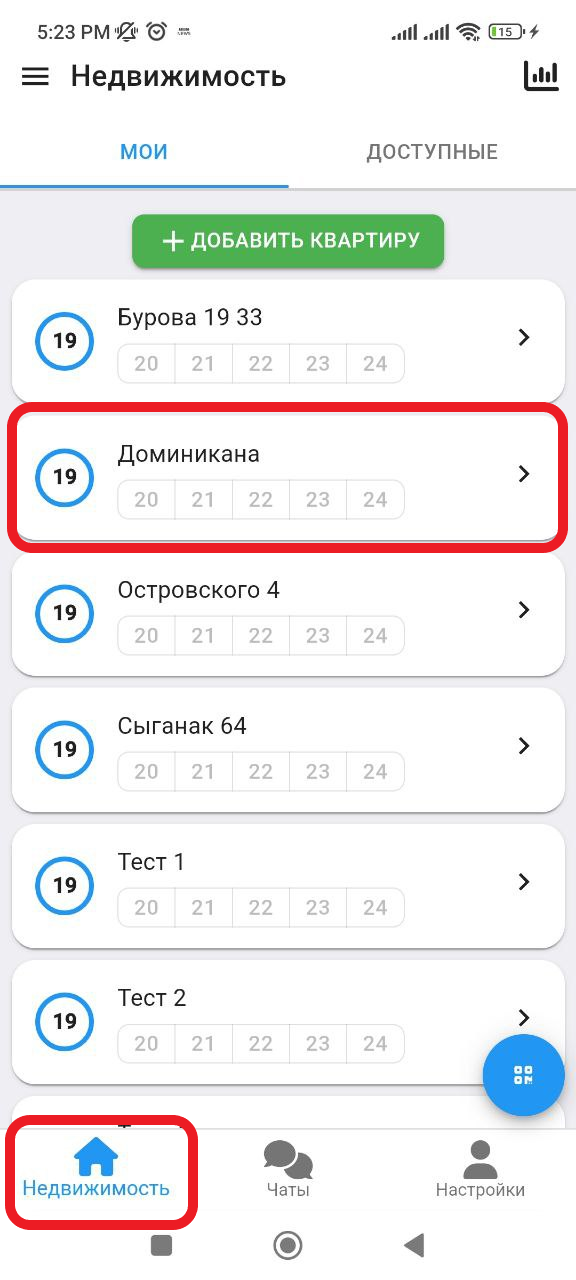
1. In the working window, click on the " Real Estate " button. Then select the real estate in which you want to create a reservation. (see example below)
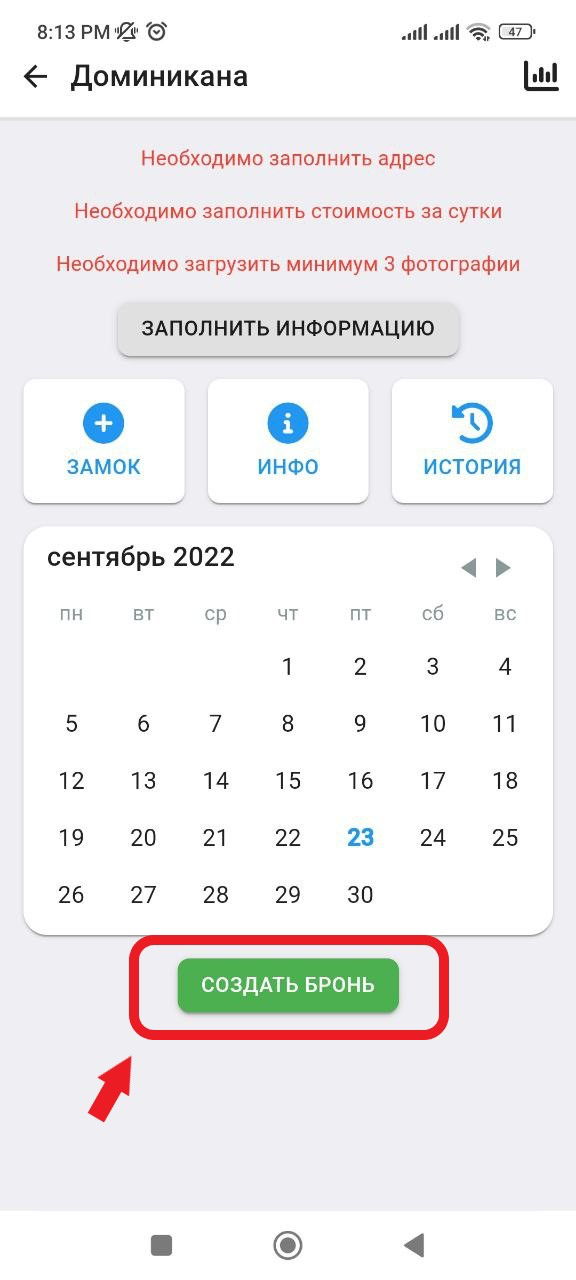
2. In the window that opens, click on the " Create a reservation " button. (See example below)
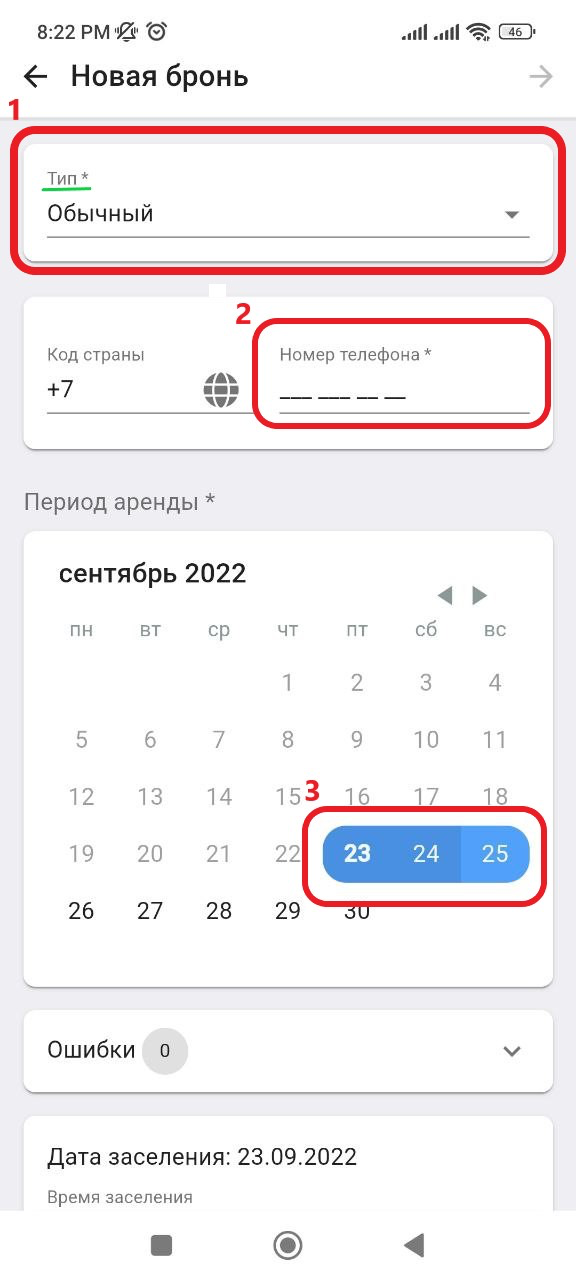
3. In the new window, in the " Type " column, select " Normal ", then enter in the " Phone number " column the contact information of the landlord for whom you are creating a reservation. Also, on the calendar, select the dates for which you want to reserve the property. (See the example below for points)
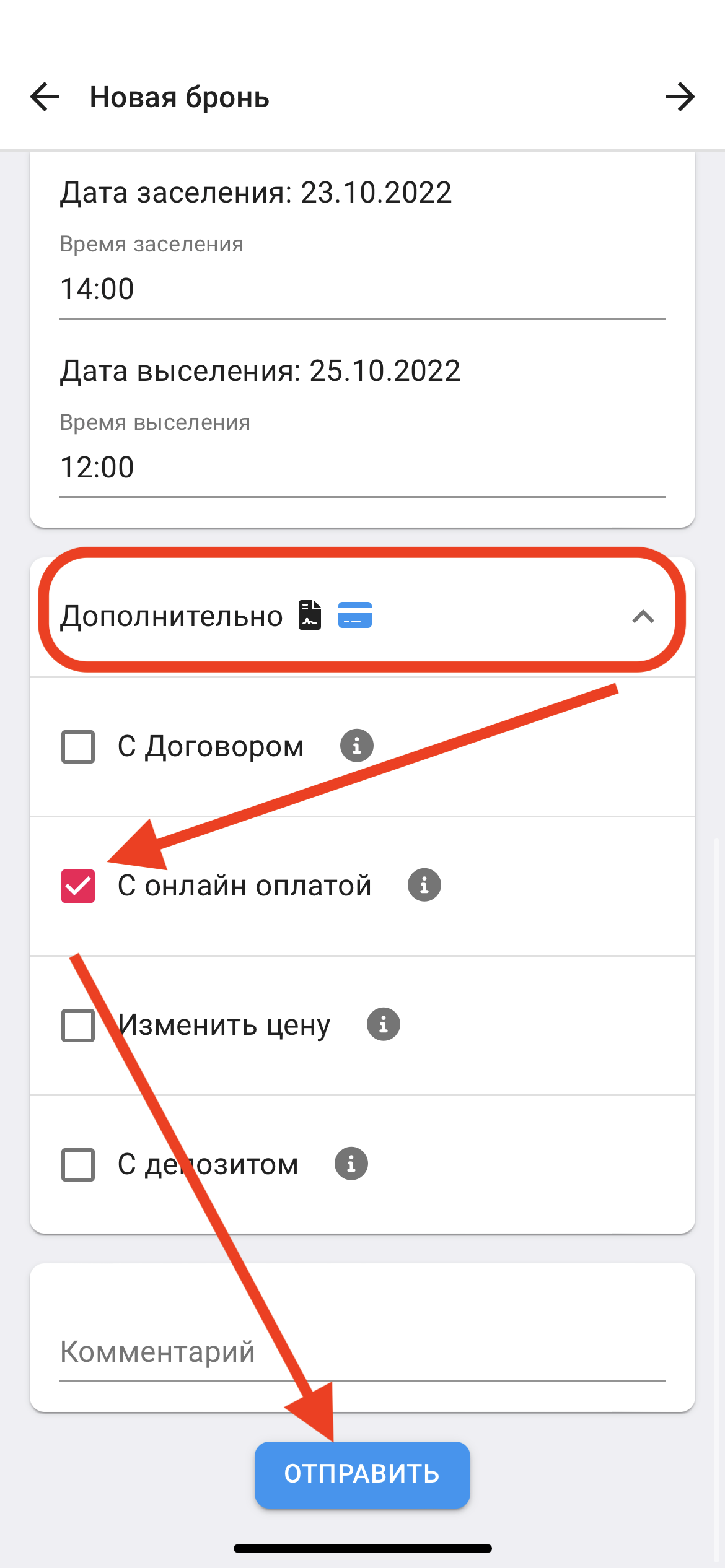
3.1 Click on the " Additional " button to change the online payment parameters.
To enable/disable online payment, click on the square to the left of "With online payment".
* If the square is without a check mark , the booking is made without online payment
* If the square has a check mark, it means the booking is done with online payment
Next, click on the " SEND " button.
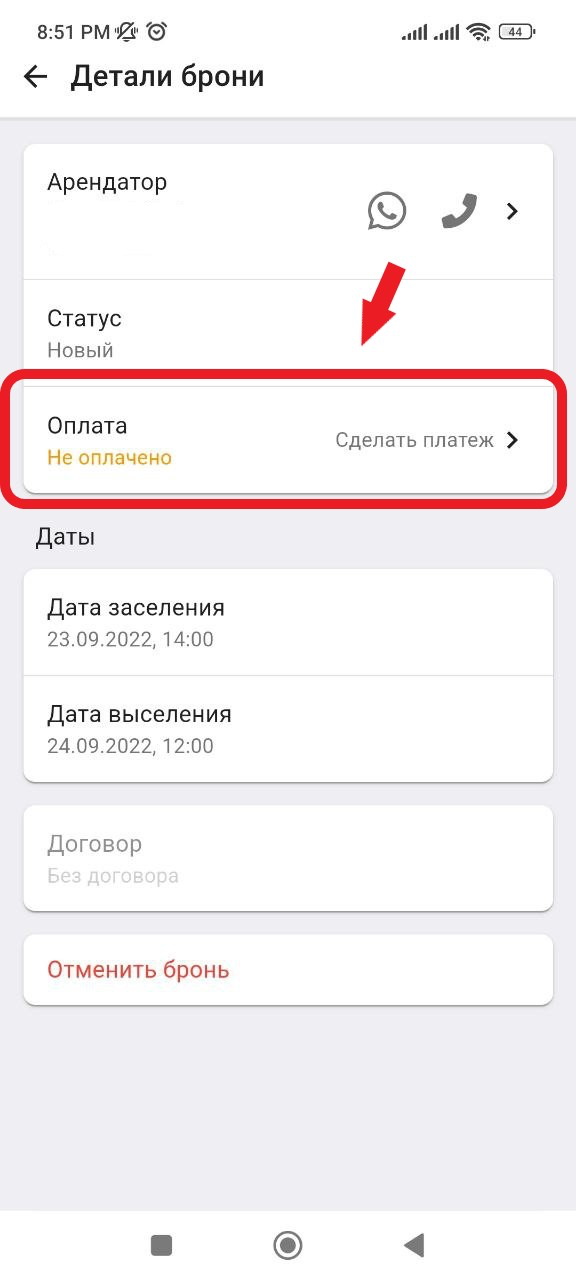
4. If you have removed all the parameters in the " Additional " column (by default, the program has the "With Agreement" and Online payment" items). In the new window that opens, you will need to confirm the payment by clicking on the " Payment " button, where you will receive a notification about confirmation of payment acceptance. (see example below)
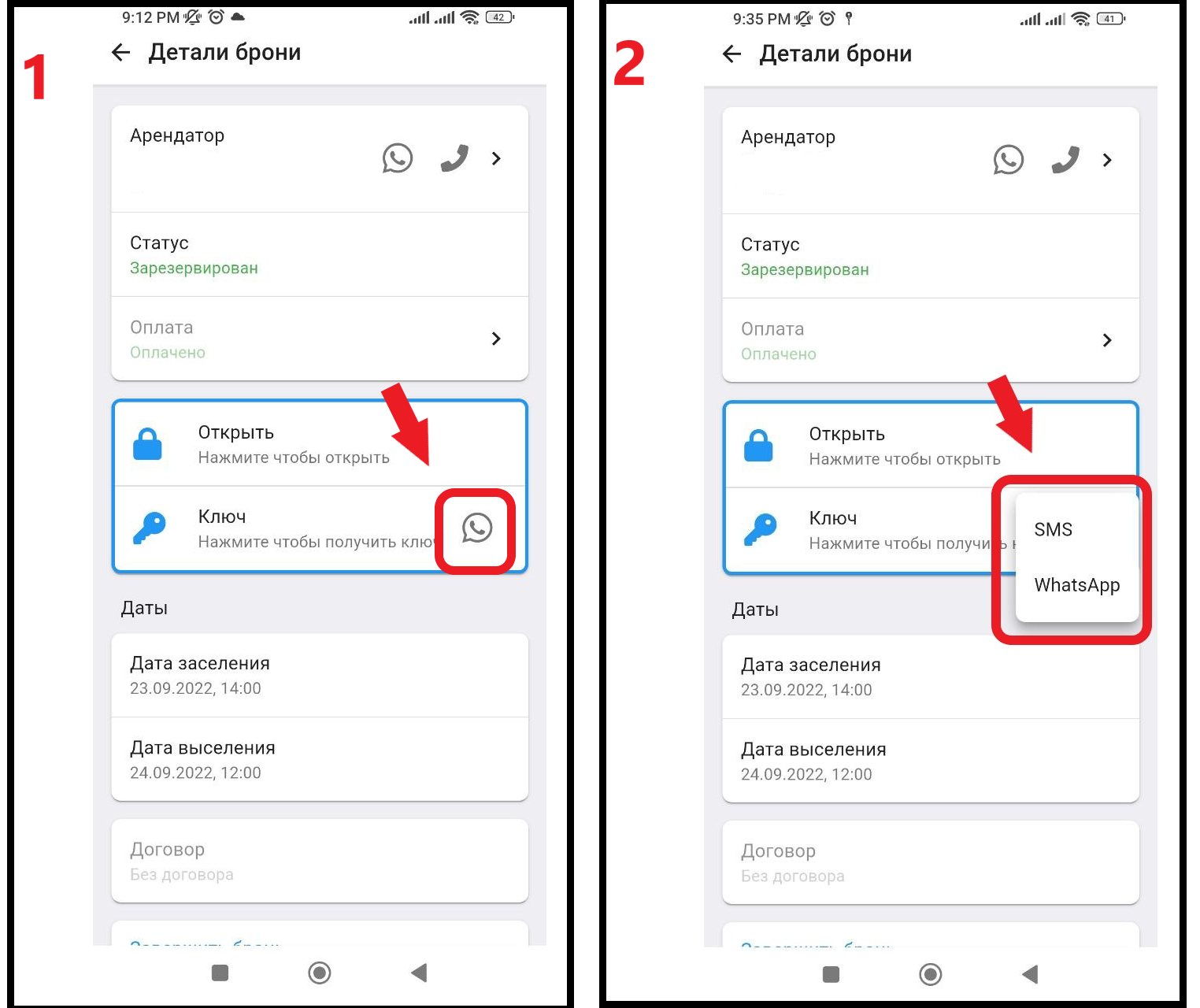
5. Next, after confirming the payment, you need to create an electronic key by clicking on the " Key " button. After you have read the warning, click on the " Key " button again. (see example below)
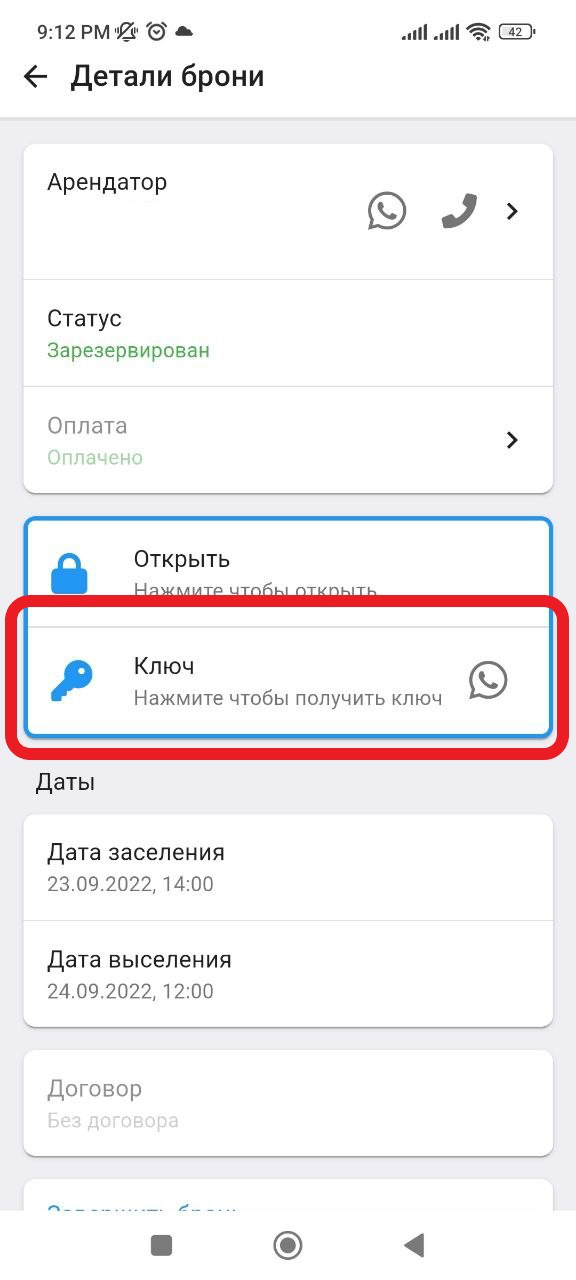
5.1 Next, you can transfer the electronic key via SMS or Whatsap by clicking on the button "  ". The armor creation is complete. (See example below)