Making a reservation with a contract (electronic code)
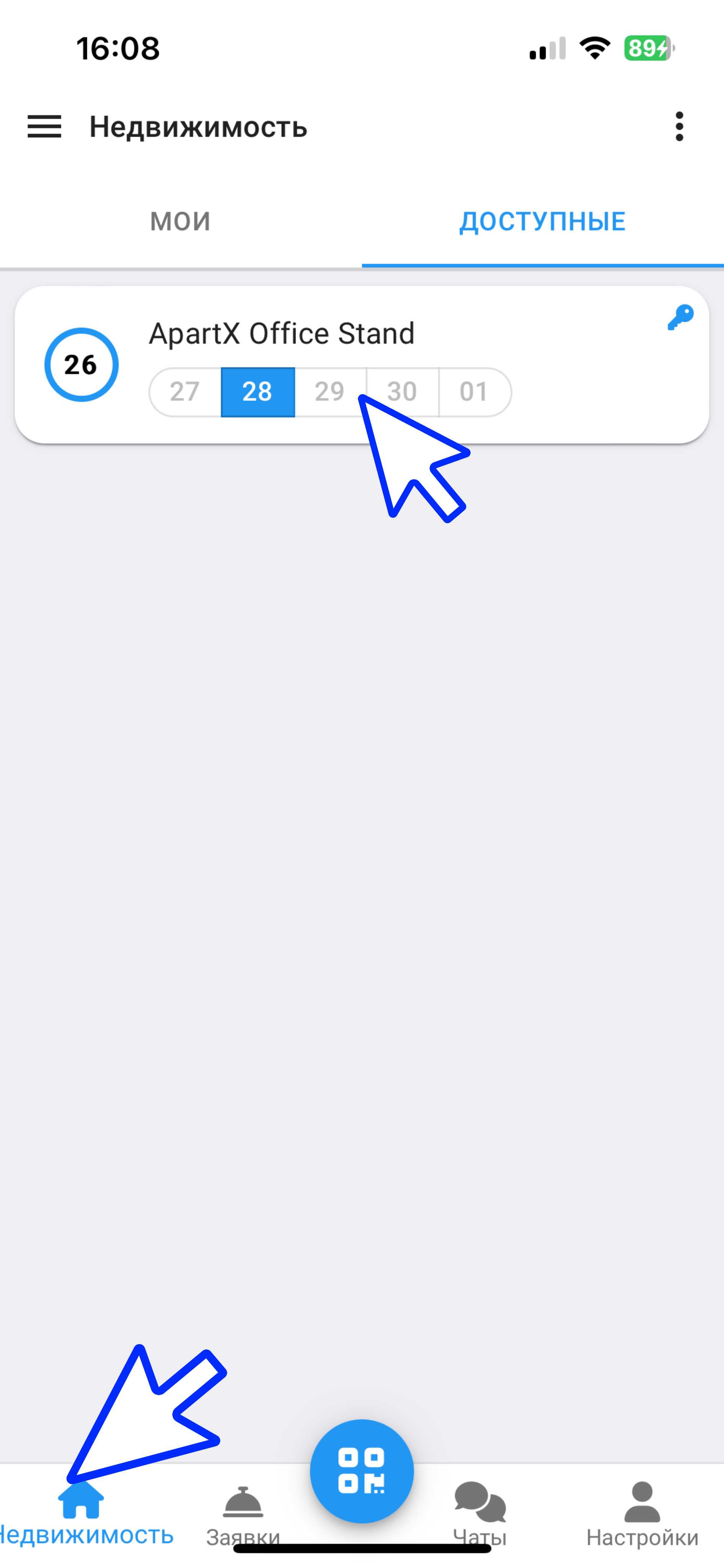
1. In the working window, click on the " Real Estate " button. Then select the real estate in which you want to create a reservation. (see example below)
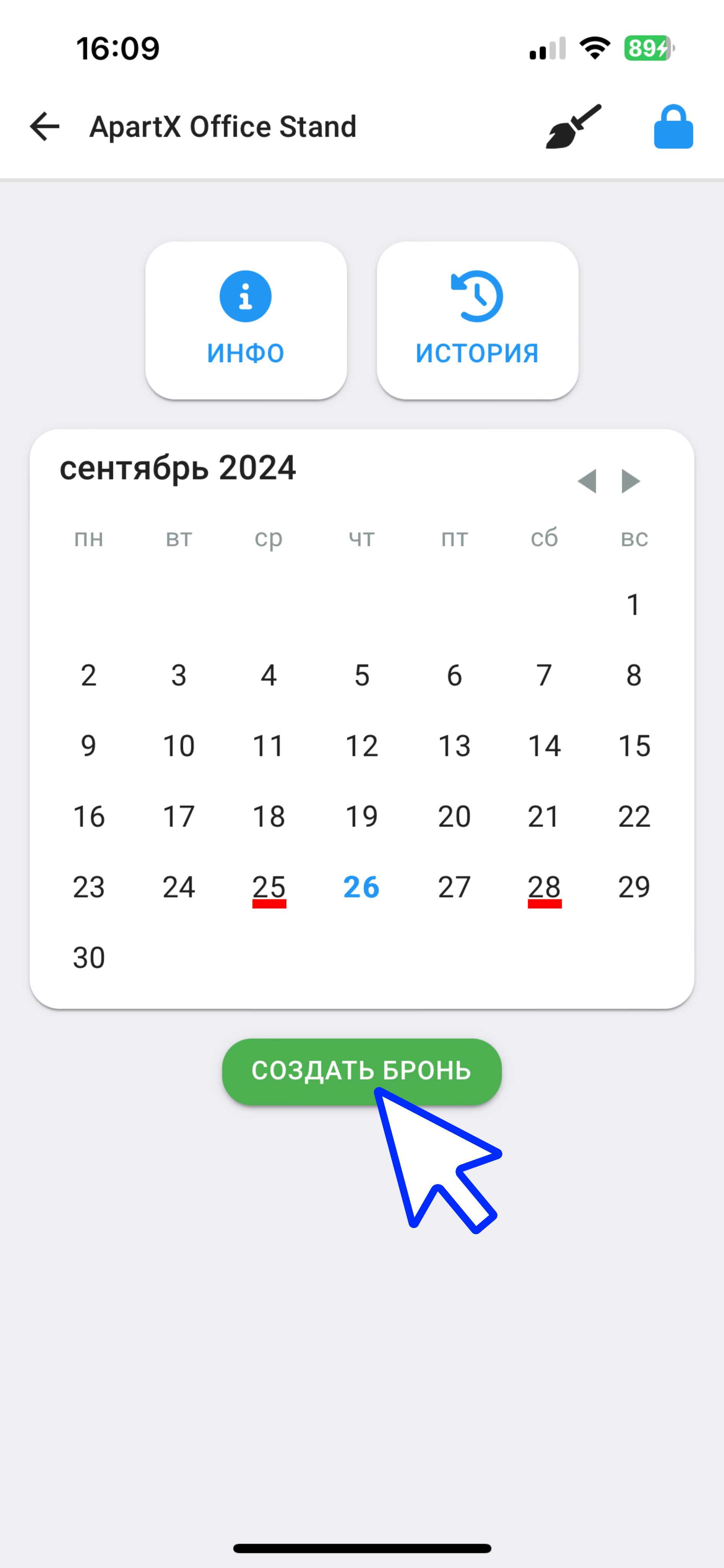
2. In the window that opens, click on the " Create a reservation " button. (See example below)
3. In the new window, in the " Type " column, select " Normal ", then enter in the " Phone number " column the contact information of the landlord for whom you are creating a reservation. Also, on the calendar, select the dates for which you want to reserve the property. (See the example below for points)
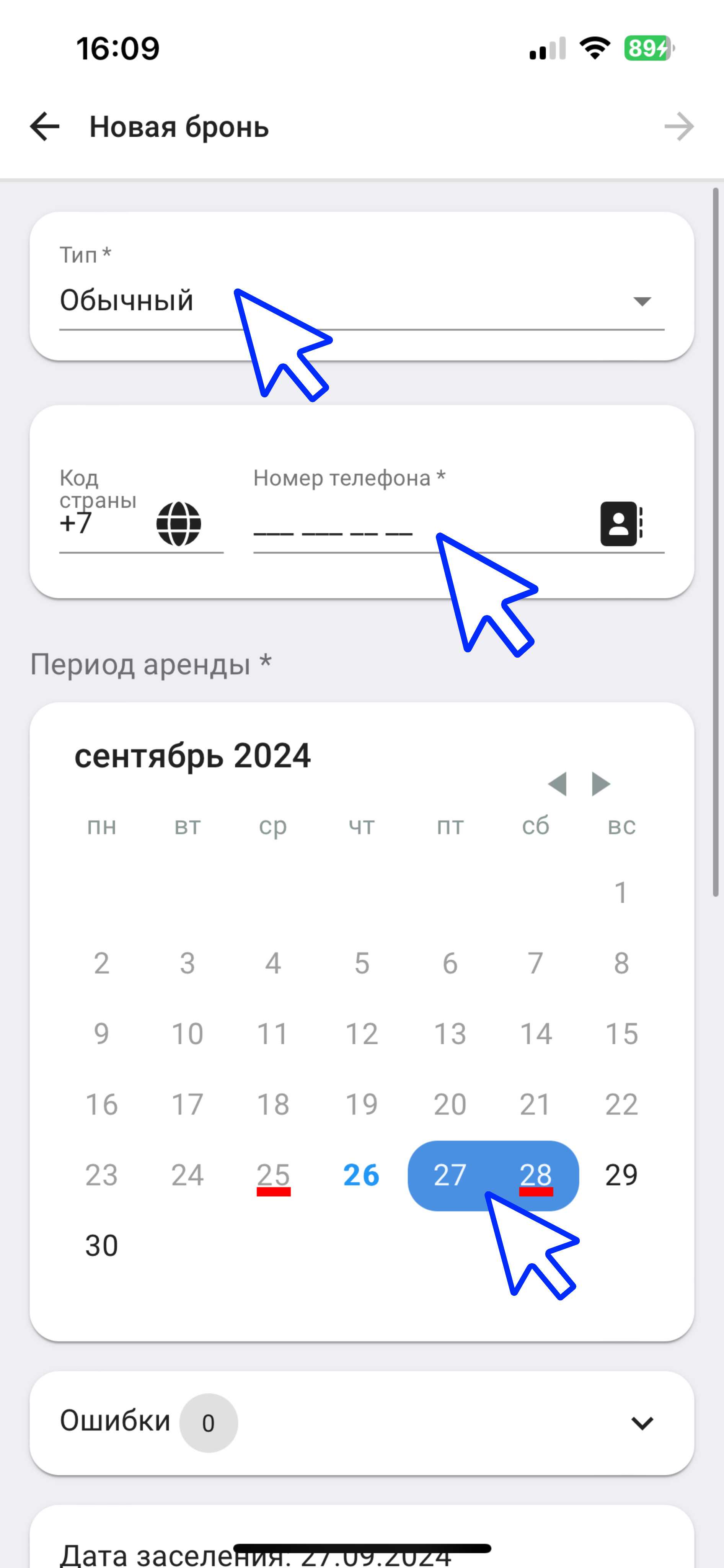
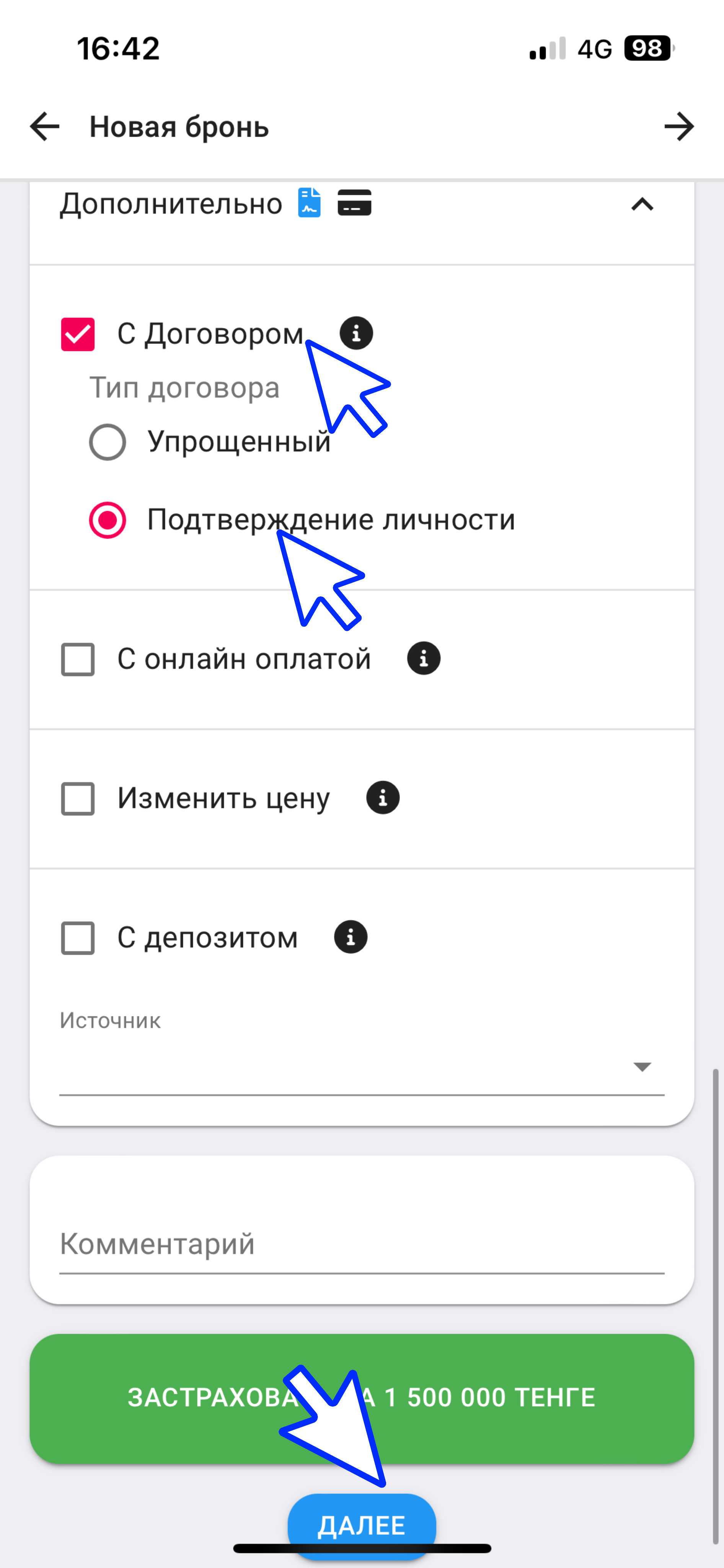
3.1 Then scroll down the page to change the tenant's check-in/check-out time. To create a reservation with a contract, click on the " Additional " button, select " With Contract ", and in this section you can also select " Simplified Contract " and " Identity Verification ". (By default, the program has the "With Contract" and Online Payment" options) . In the " Comment " column, you can enter information about this apartment or about the client. After filling in all the parameters, click on the " Next " button. (See example below)
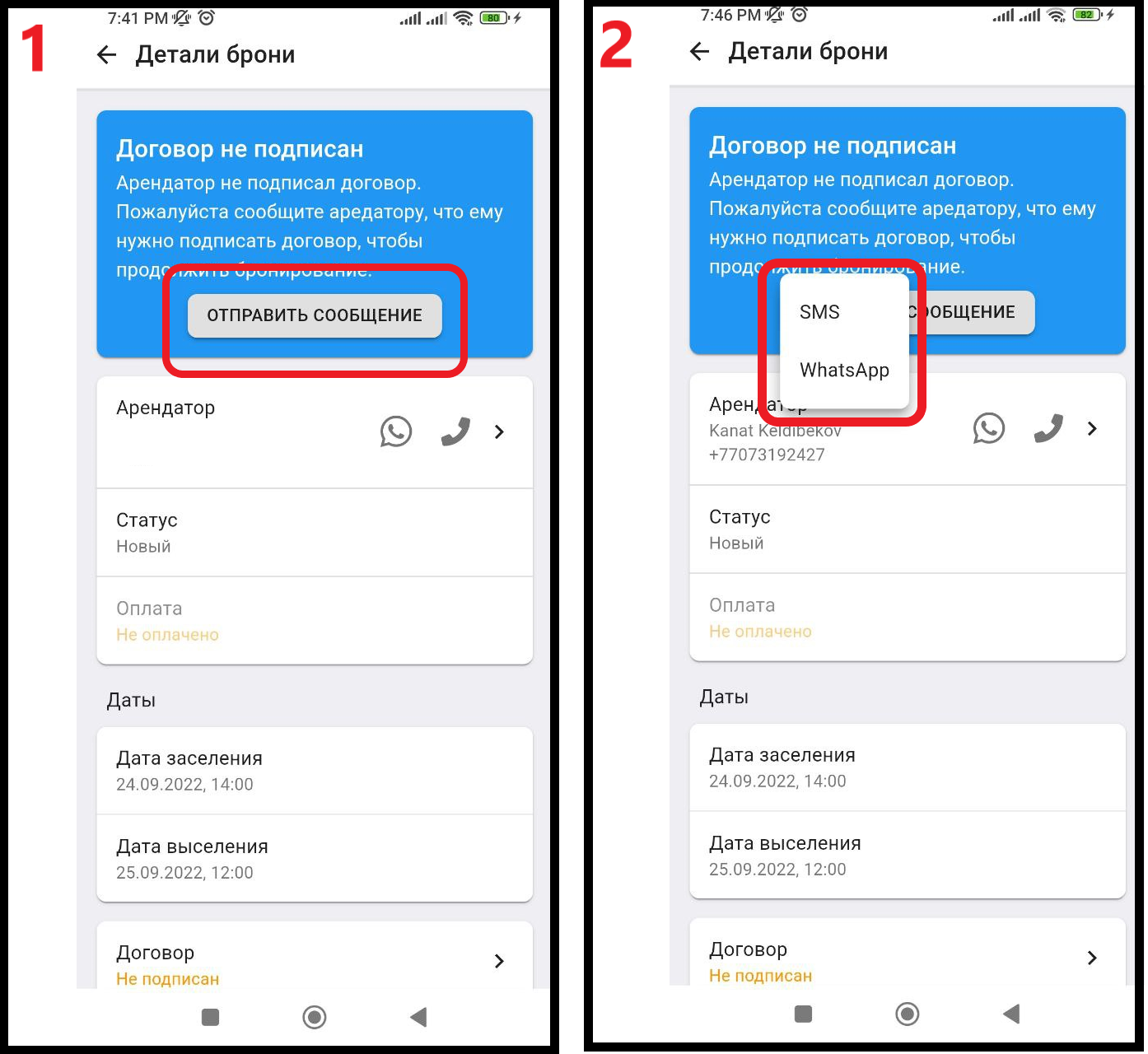
4. Next, to send a reservation with a contract, you will need to click on the " Send message " button, after you have read the warning, click on the " Send message " button again, and select one of the suggested methods of sending SMS or Whatsap.
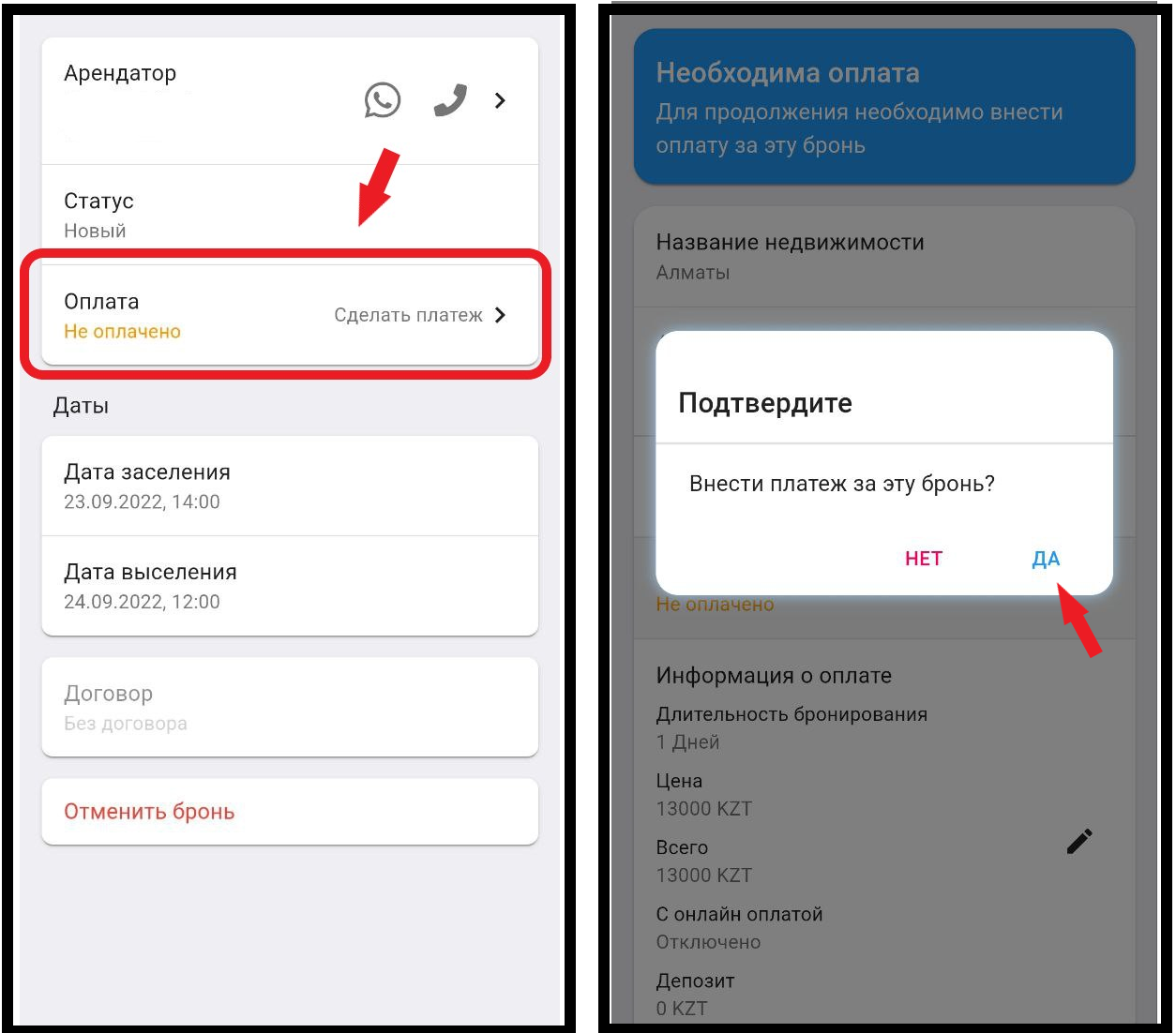
5. After the client signs the contract, you will need to accept the payment. (see example below)
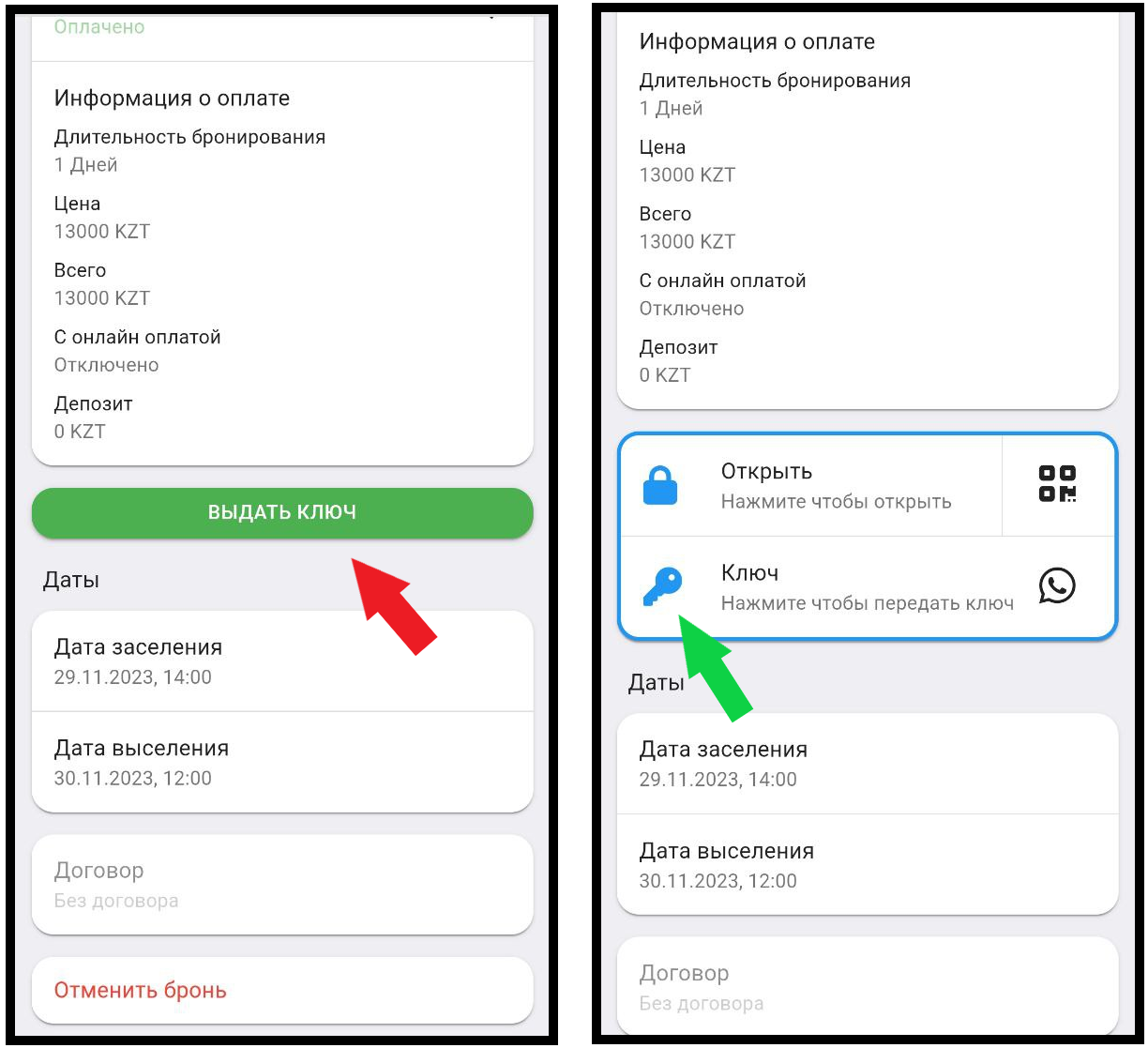
6. Next, click on the " Give Key " button, then to create a key, click on the icon  an electronic key will be created. (see example below)