Making a reservation without a contract
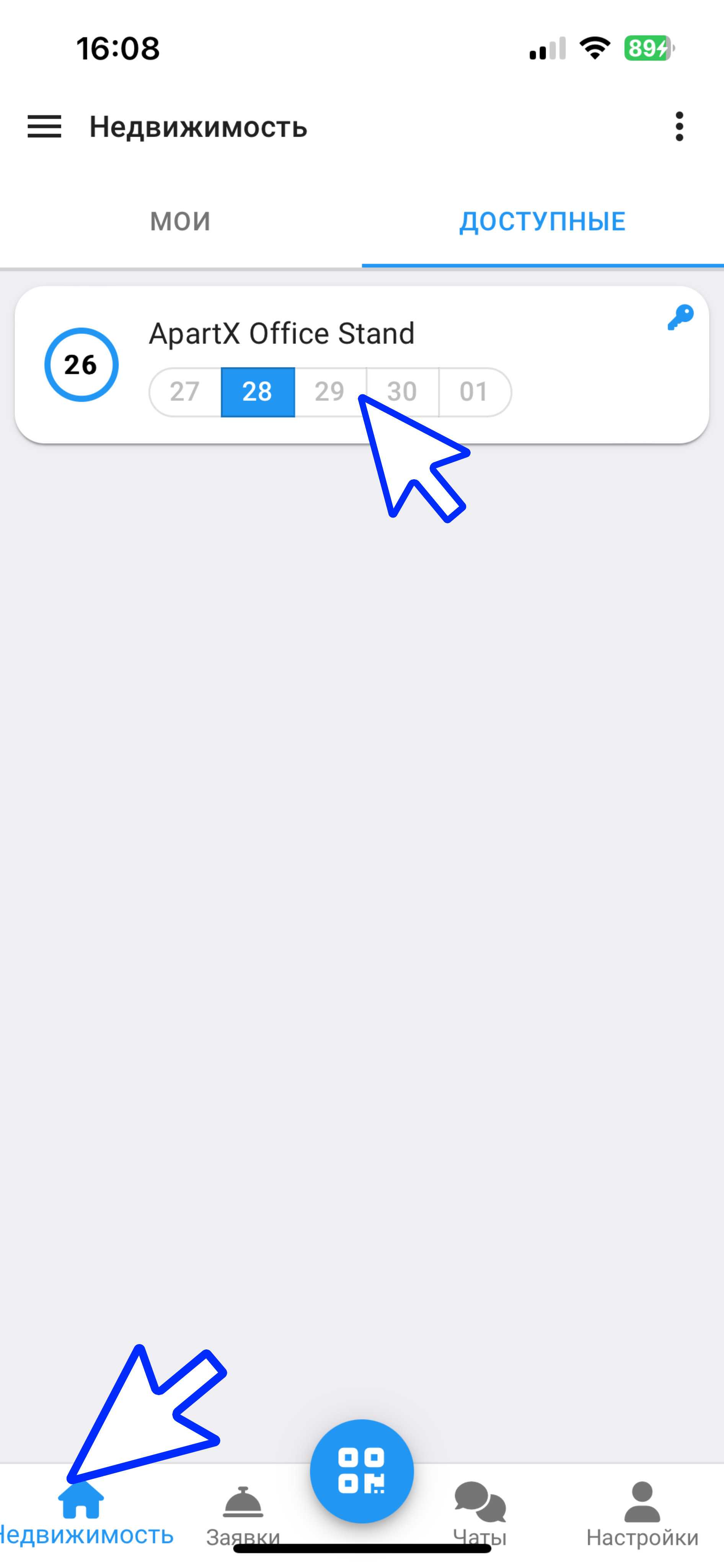
1. In the working window, click on the " Real Estate " button. Then select the real estate in which you want to create a reservation. (see example below)
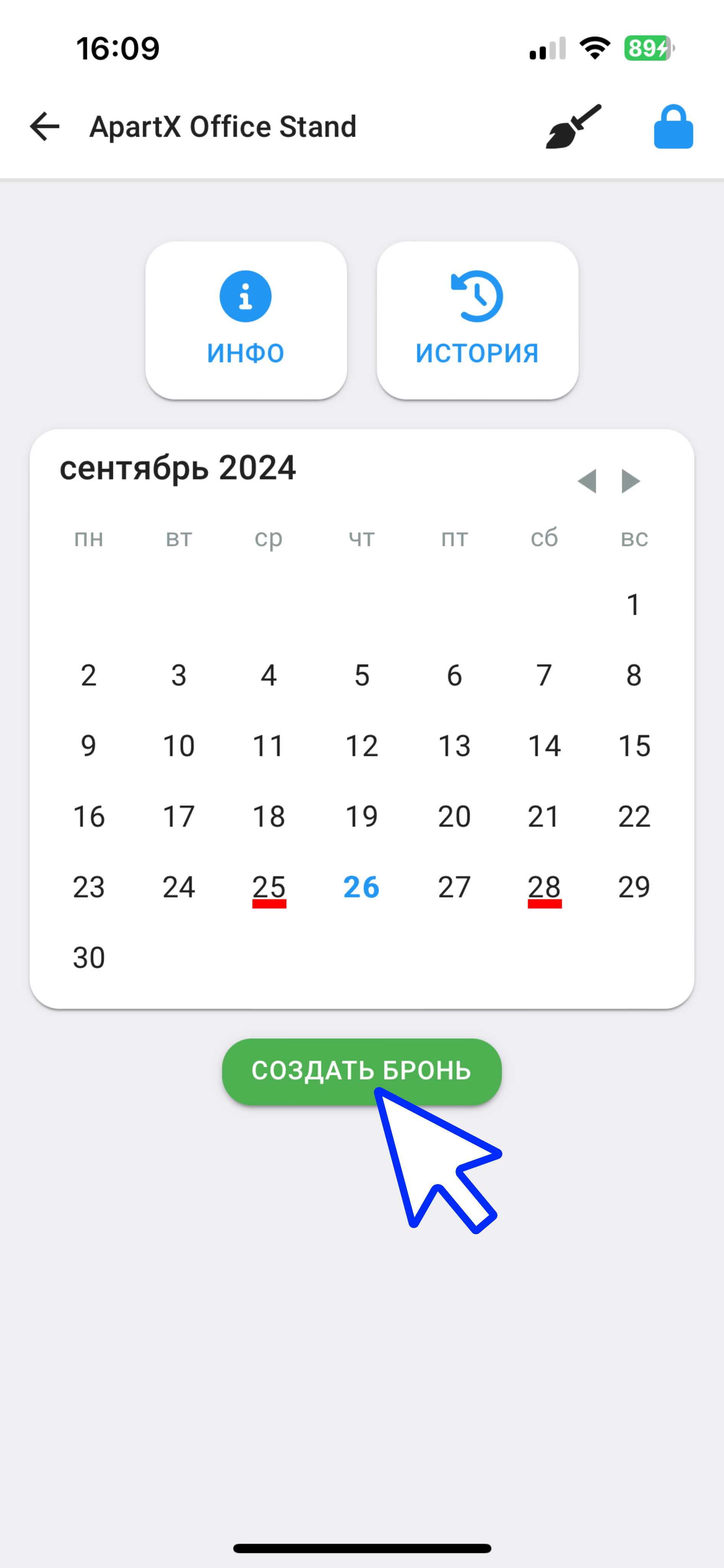
2. In the window that opens, click on the " Create a reservation " button. (See example below)
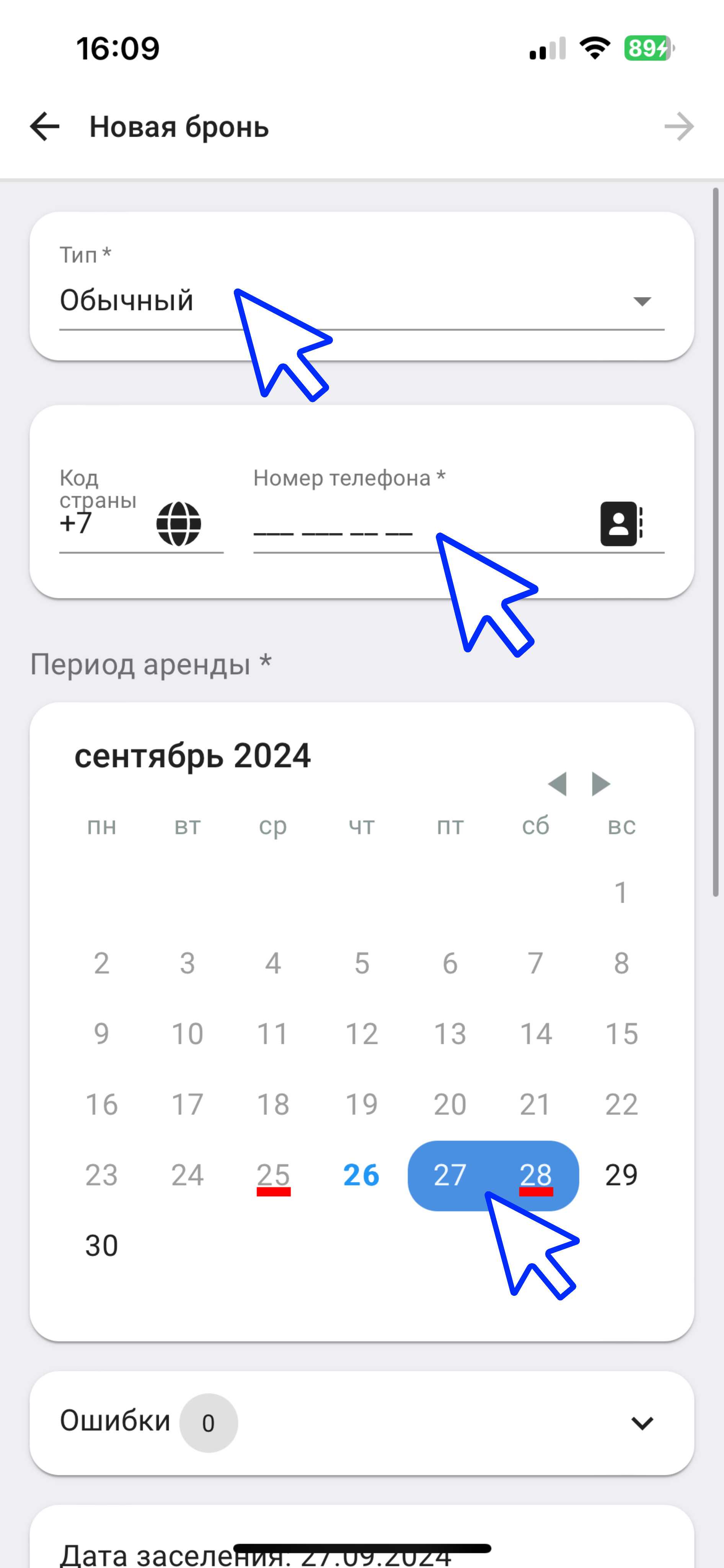
3. In the new window, in the " Type " column, select " Normal ", then enter in the " Phone number " column the contact information of the landlord for whom you are creating a reservation. Also, on the calendar, select the dates for which you want to reserve the property. (See the example below for points)
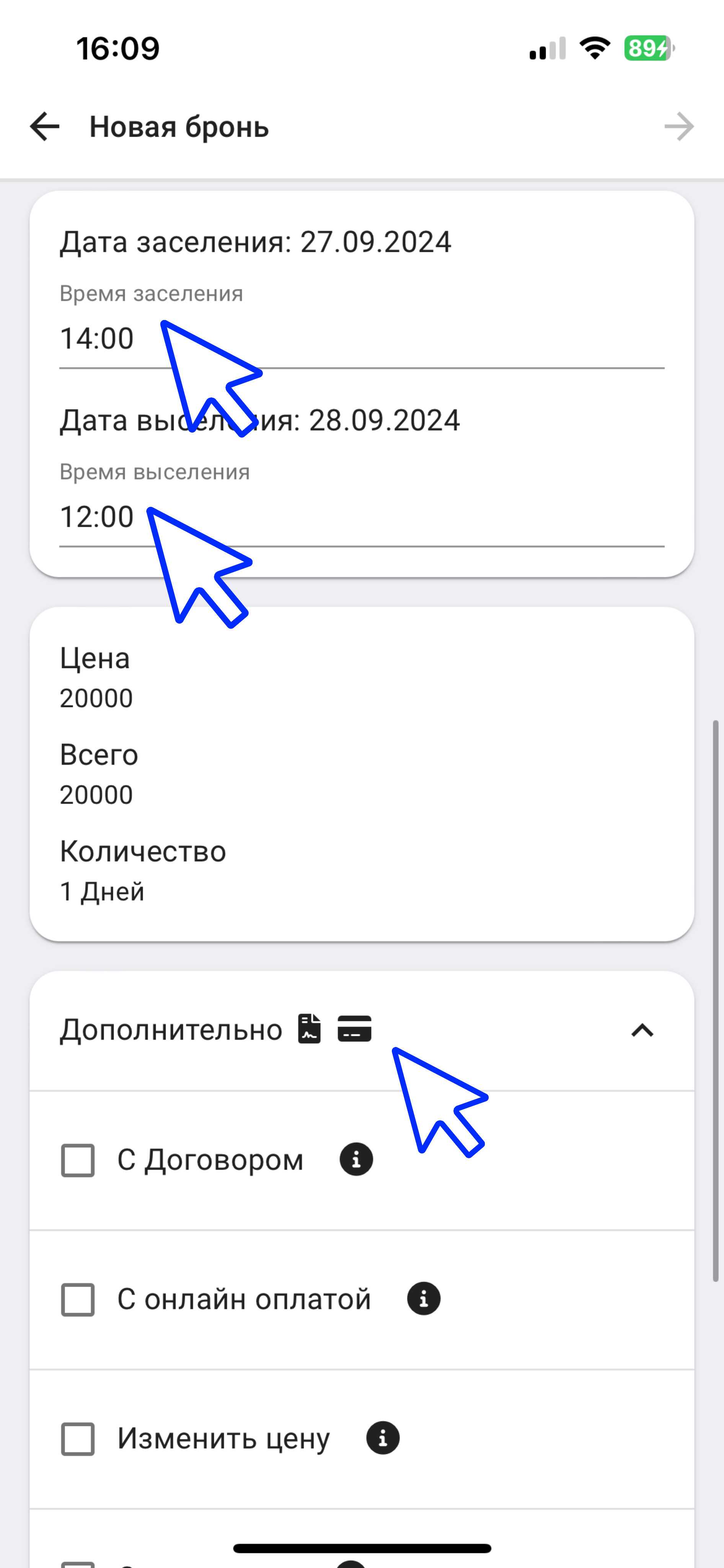
3.1 Then scroll down the page and you can change the tenant's check-in/check-out time. Also, by clicking on the " Additional " button, you can select the booking creation parameters:
- With the Agreement ( https://apartx.freshdesk.com/ru-RU/support/solutions/articles/150000009499-creation-of-a-booking-with-a-contract )
- With online payment ( https://apartx.freshdesk.com/ru-RU/support/solutions/articles/150000012613-booking-with-online-payments-without )
- Change price
- With Deposit ( https://apartx.freshdesk.com/ru-RU/support/solutions/articles/150000014365-додача-убед-депозит-имить-цену-фезита )
In the " Comment " column you can write down information about this apartment or about the client. After filling in all the parameters, click on the " Send " button. (See example below)
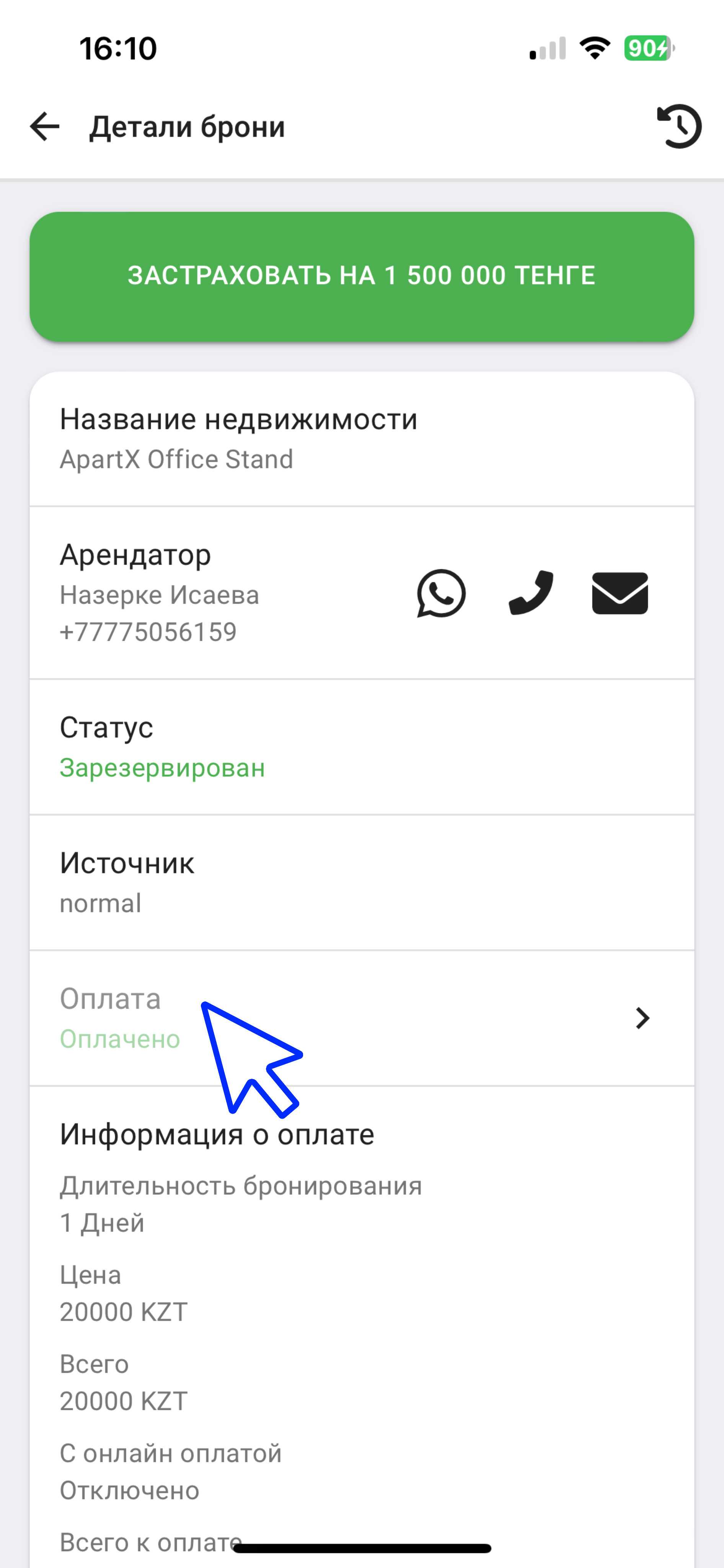
4. If you have removed all the parameters in the " Additional " column (by default, the program has the "With Agreement" and Online payment" items). In the new window that opens, you will need to confirm the payment by clicking on the " Payment " button, where you will receive a notification about confirmation of payment acceptance. (see example below)
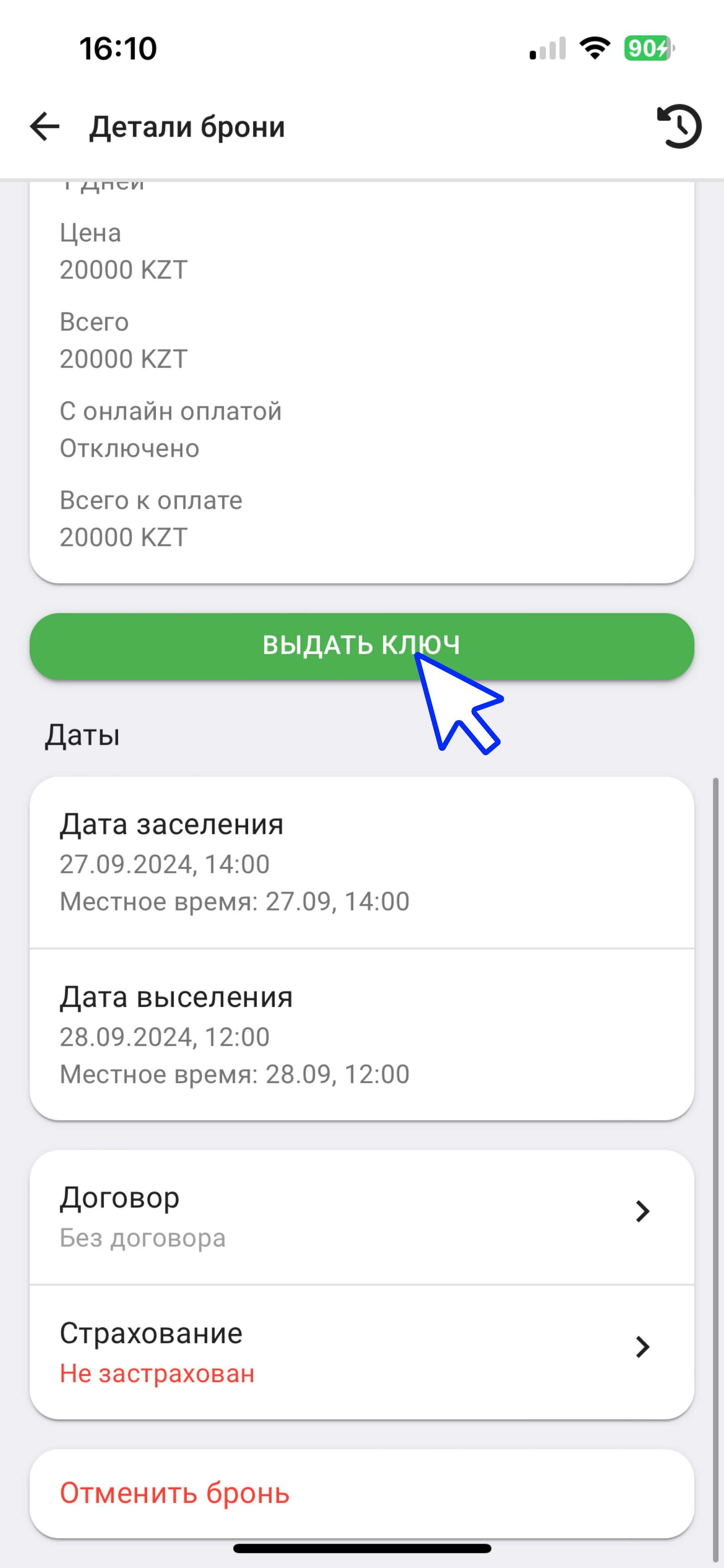
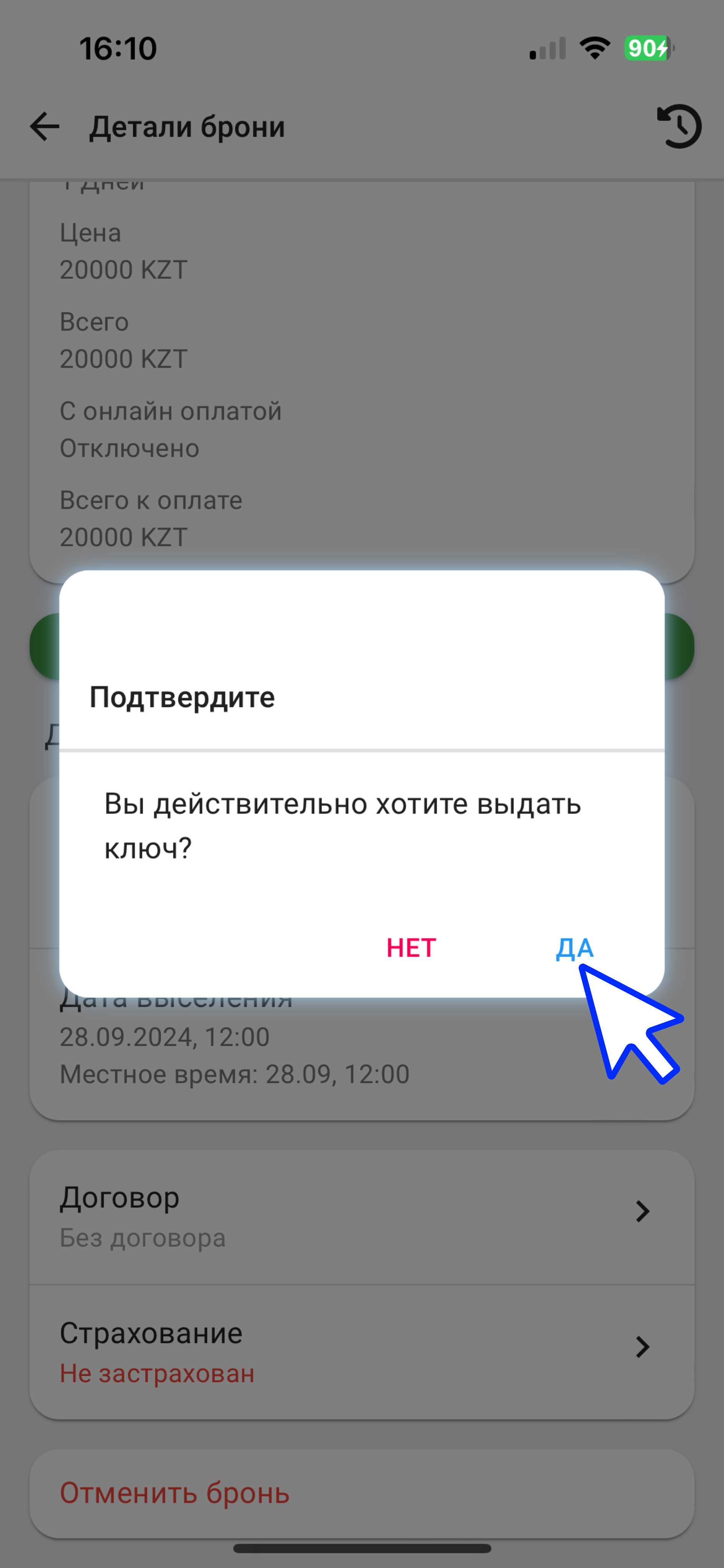
5. Next, after confirming the payment, you need to create an electronic key by clicking on the " Issue key " button. After you have read the warning, click on the "Yes" button. (See example below)
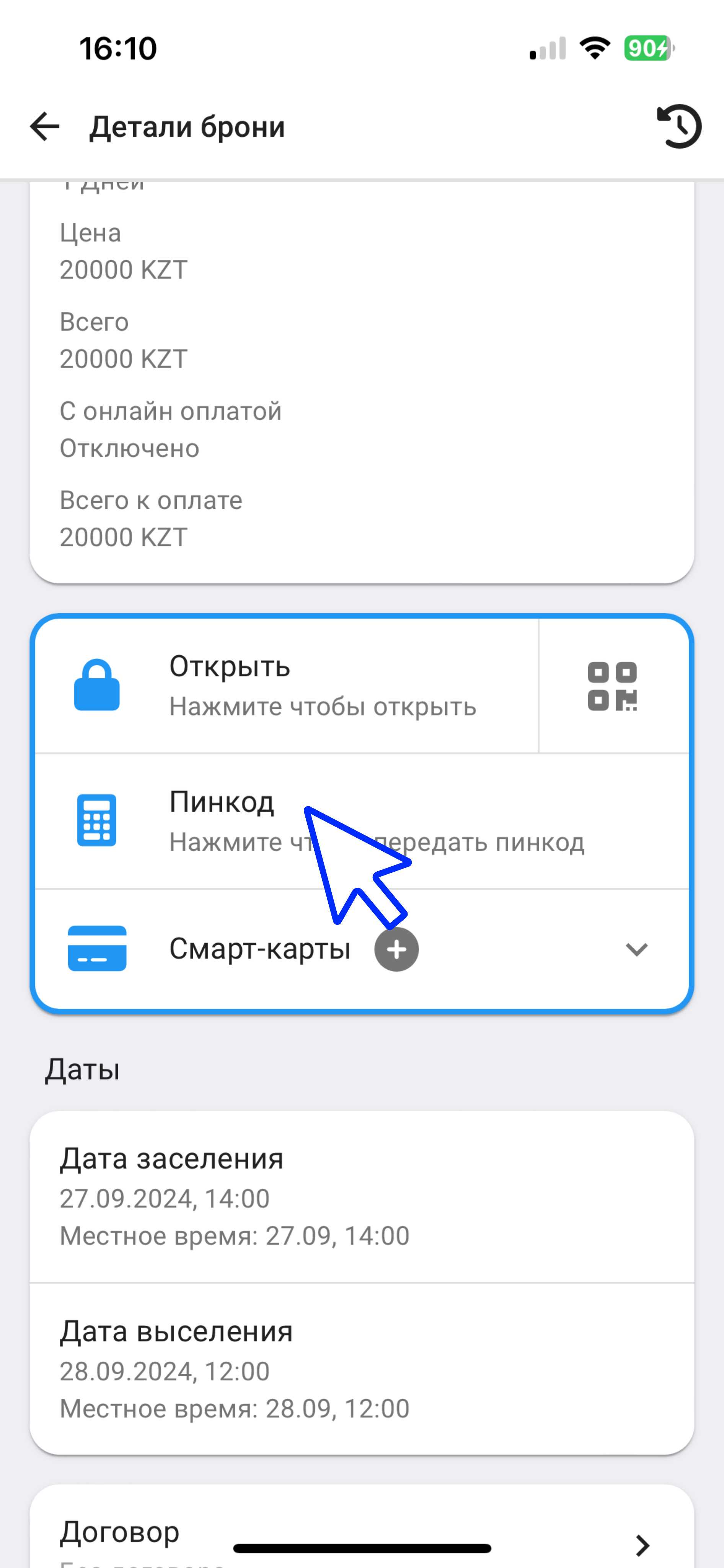
5.1 Next you can copy the pin code and send it to the tenant by clicking on the "Pin code" button. The booking is now complete. (see example below)