Adding a property
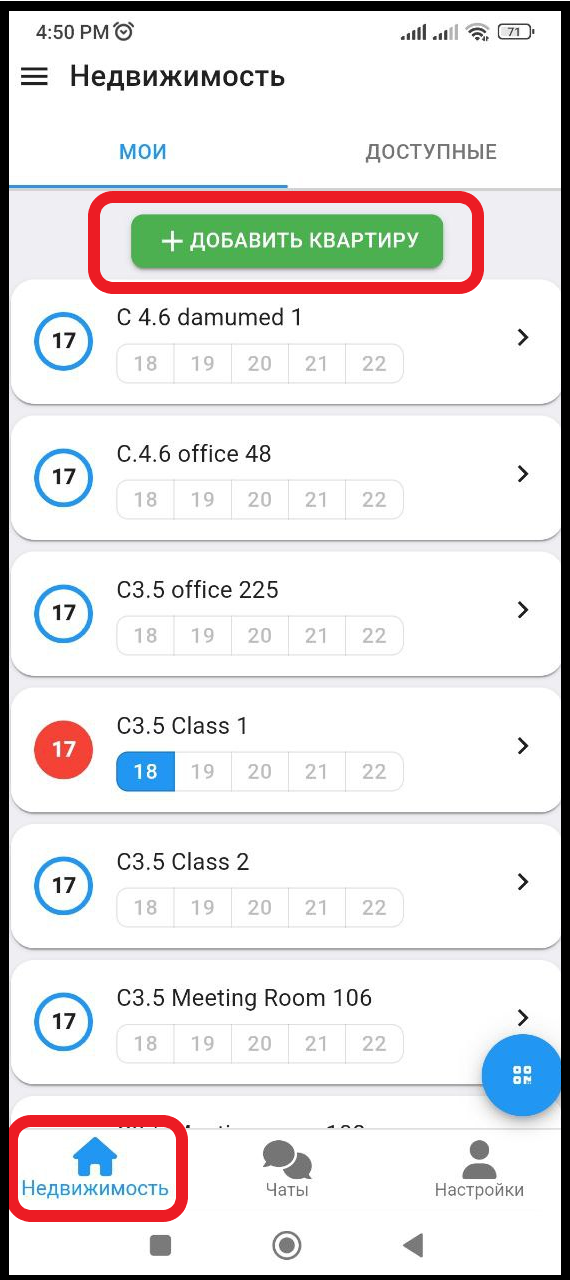
1. In the “ Real Estate ” section, click on the “ + ADD APARTMENT ” button (see example below)
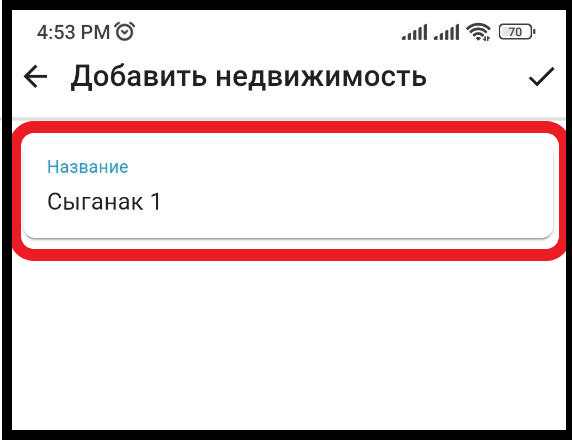
2. Enter the name of the property. Example: Syganak 1 (see example below)
3. You will receive a notification about adding a property. Next, click on the property you created to fill in the full information and connect the smart lock.
4. To add a lock, click the “ Lock ” button (see example below)
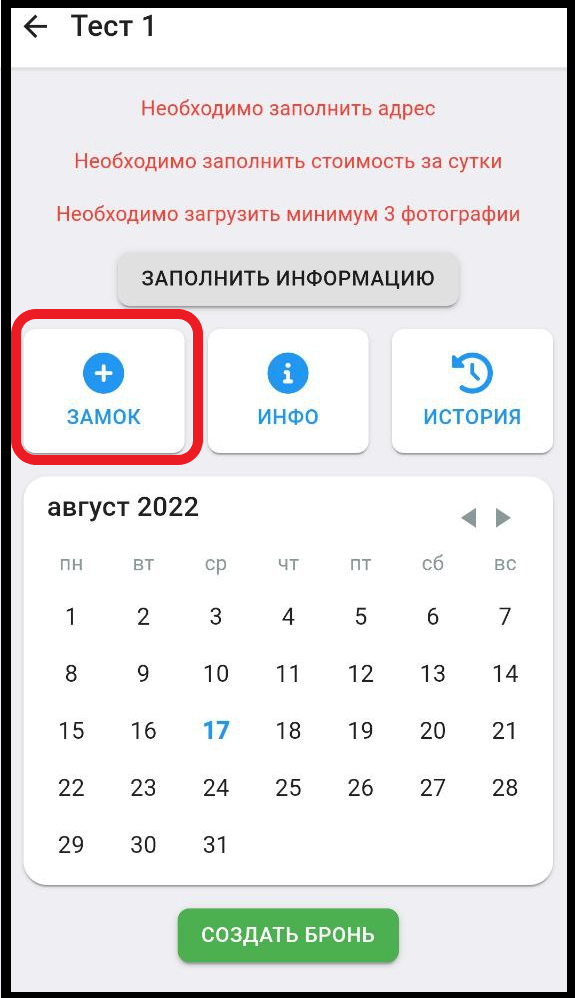
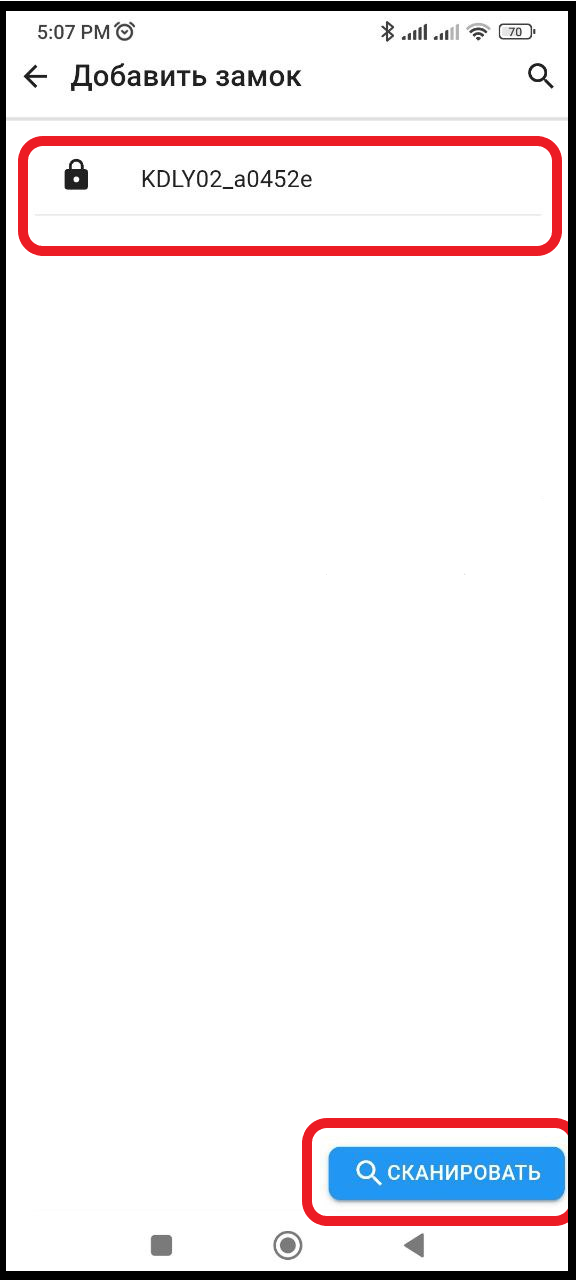
5. To connect the lock to your device, press the “ Scan ” button. If you do not have Bluetooth enabled, your phone will ask you to enable it, confirm that Bluetooth is enabled. Then, after pressing “ Scan ”, the lock ID will appear on the screen, press this ID. (See example below)
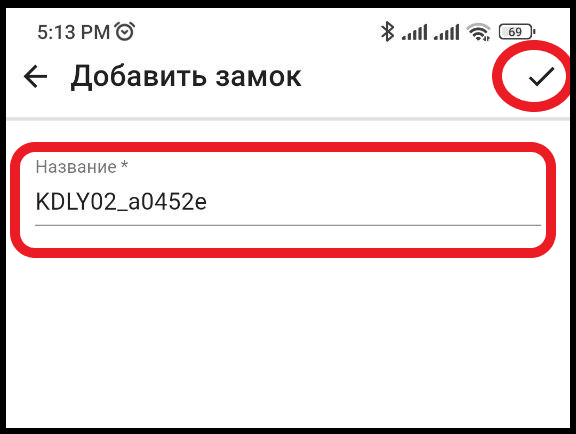
6. After that you will go to the window where you can give a name to this lock, then click on the check mark in the upper corner of the window. (see example below)
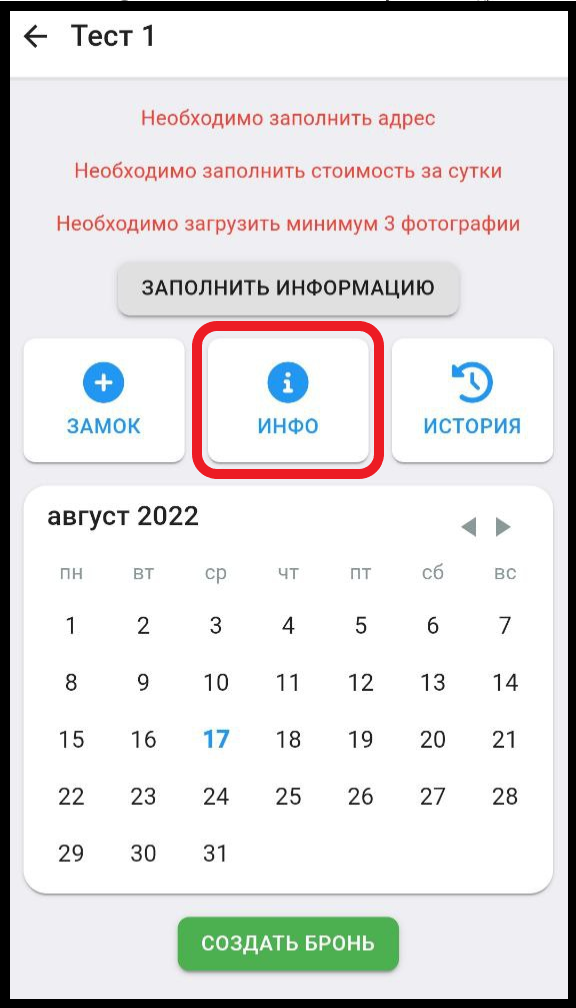
8. After you have added the castle, you will need to fill in the information about your property. Click on the “ INFO ” button. (See example below)
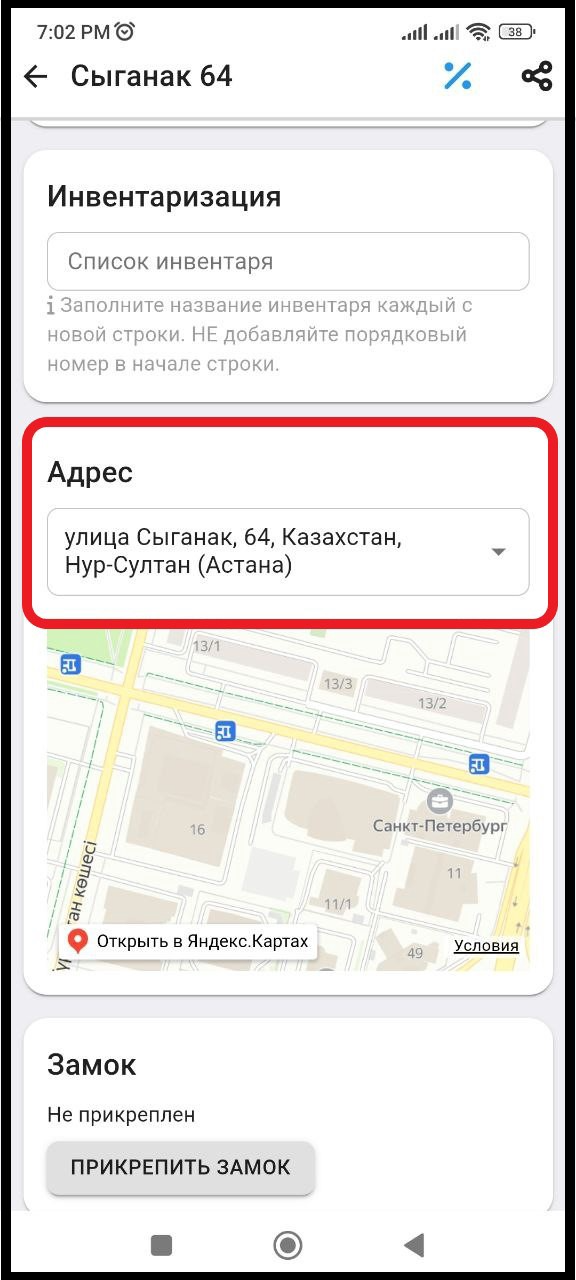
9. In this window, fill in all the required fields (Prices/Description/Address). A “save” button will appear above each filled field, which you will need to click to save the information.
9.1 Fields with the name " Address " are mandatory to fill in, as your castle will be synchronized with the ApartX application, so that the time of renting out the property corresponds to the selected region/country. Adding the property is complete . Fields with the names " Photos ", " Prices ", " Description " are mandatory to fill in.