Adding info about property name, description, photos, price, inventory and address.
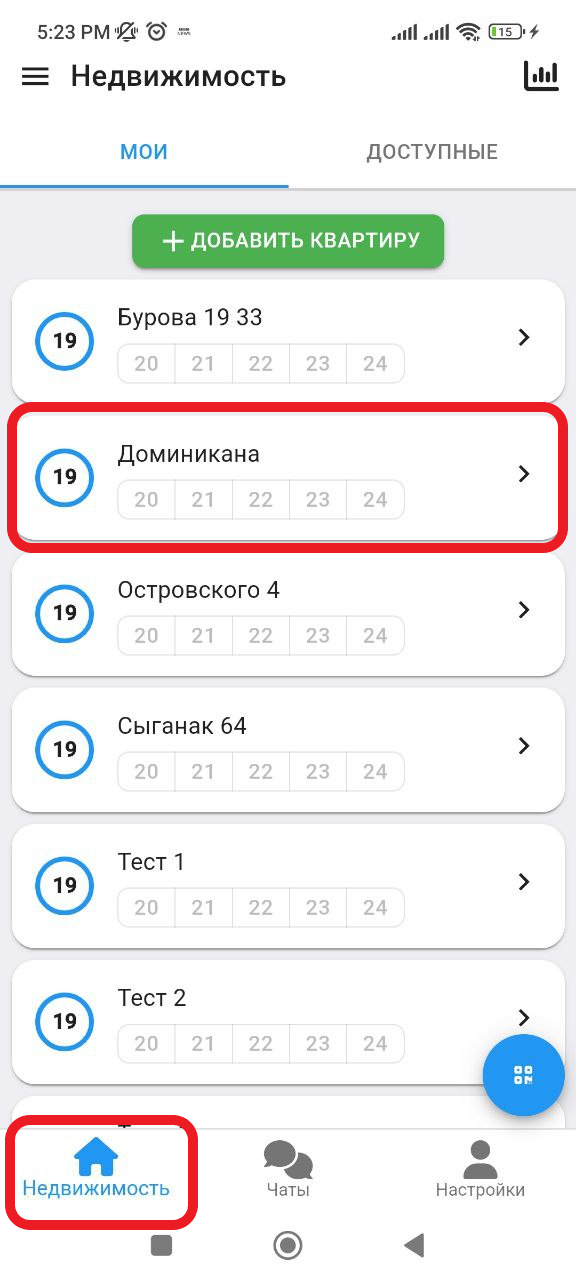
1. In the working window, click on the " Real Estate " button. Then select the real estate you want to add. (See example below)
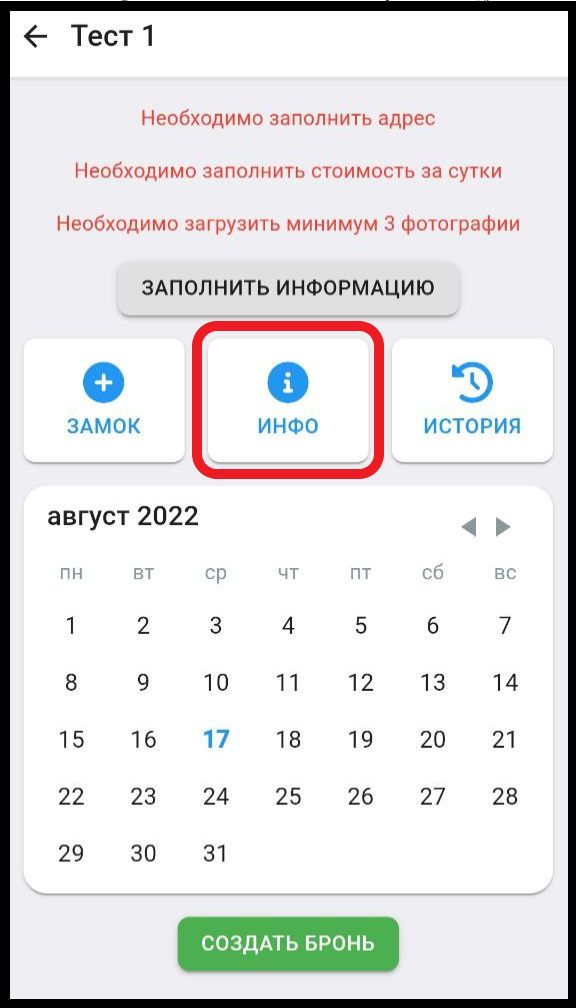
2. After you have added the castle, you will need to fill in the information about your property. Click on the “ INFO ” button. (See example below)
3. Enter the name of the property. Example: Apartment 1 (see example below)
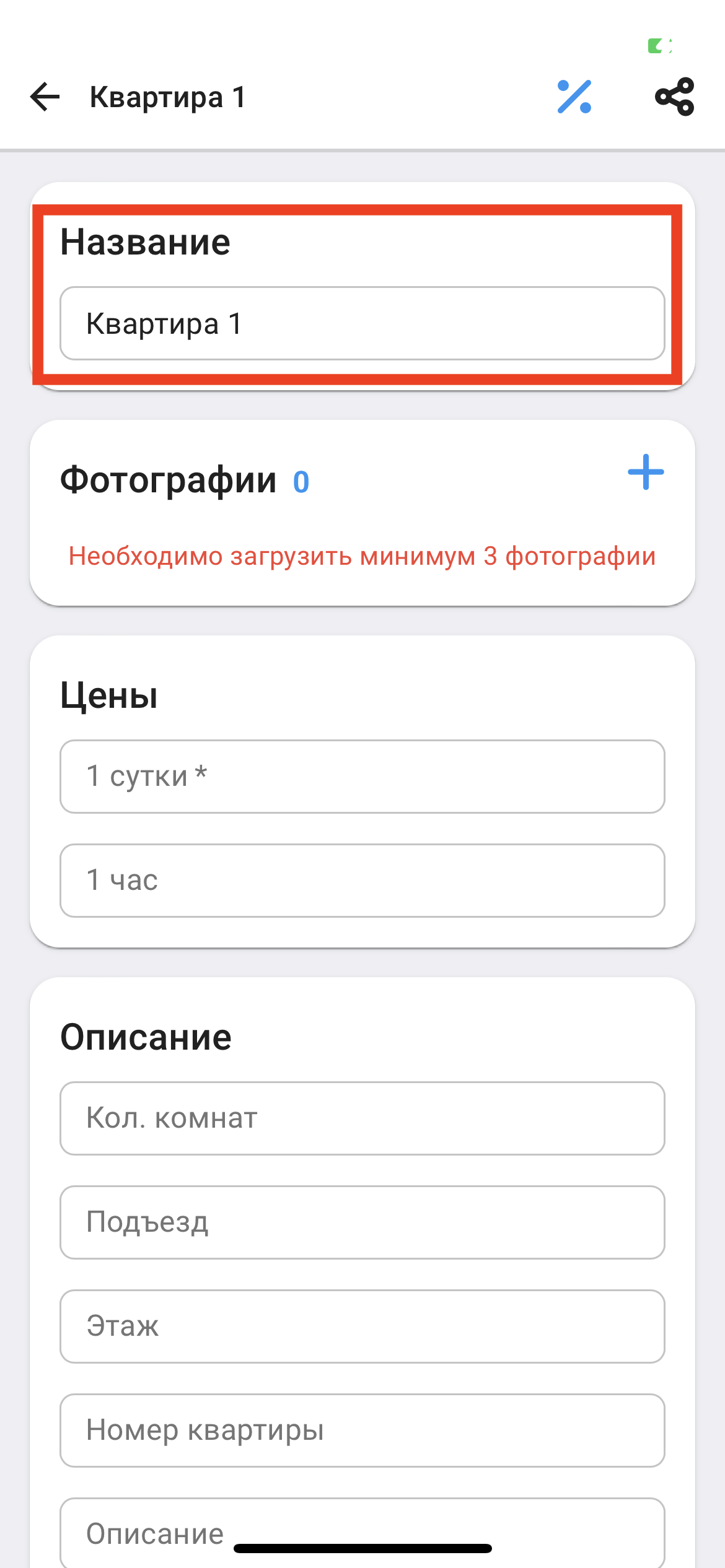
4. To add a photo, in the "Photos" section, click on the blue + button , and to delete, click on the red X button. (See example below)
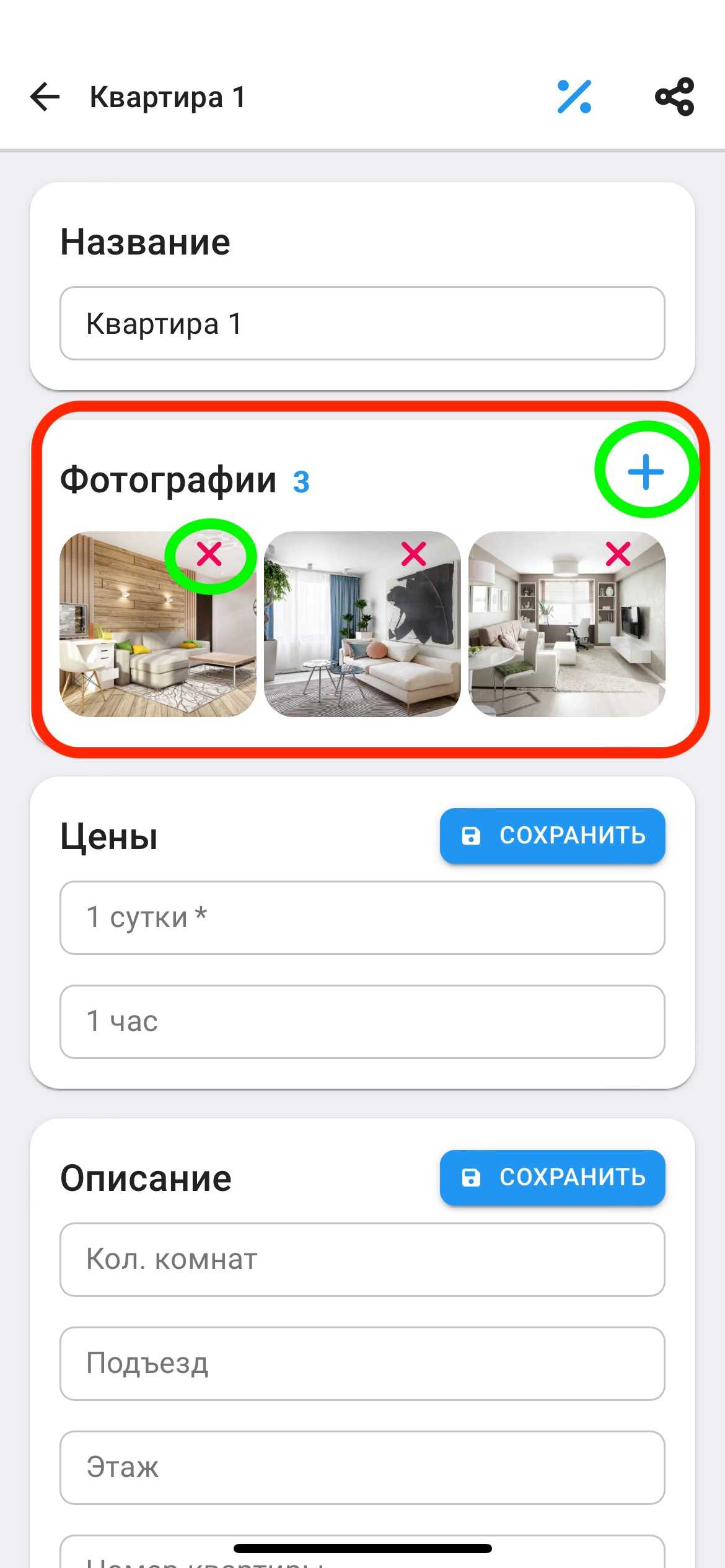
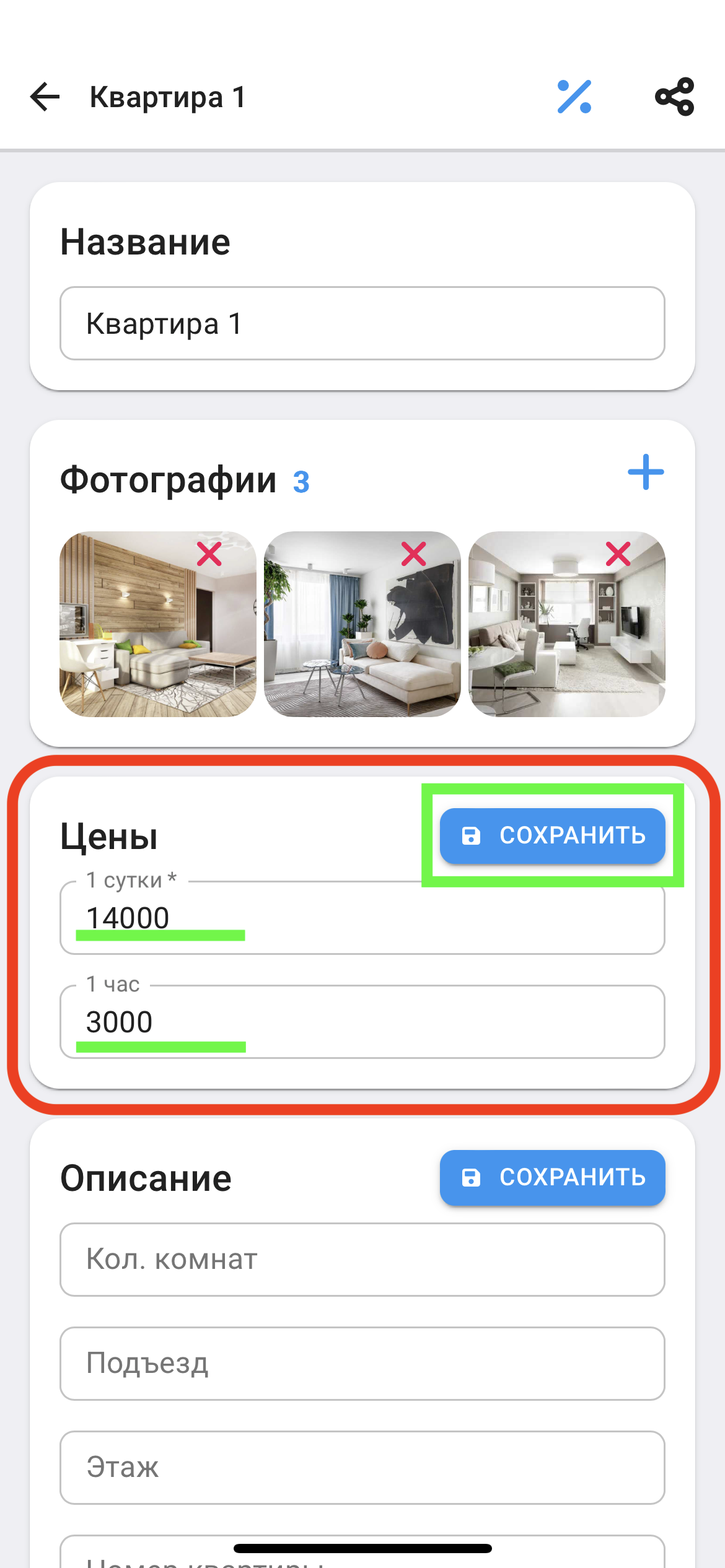
4. To add a price, in the "Prices" section, fill in the appropriate lines. If you are not going to rent by the hour, leave the "1 hour" line blank. After filling in, click the "SAVE" button. (See example below)
5 . To add a description, in the "Description" section, fill in the appropriate lines. After filling in, click the "SAVE" button. (see example below)
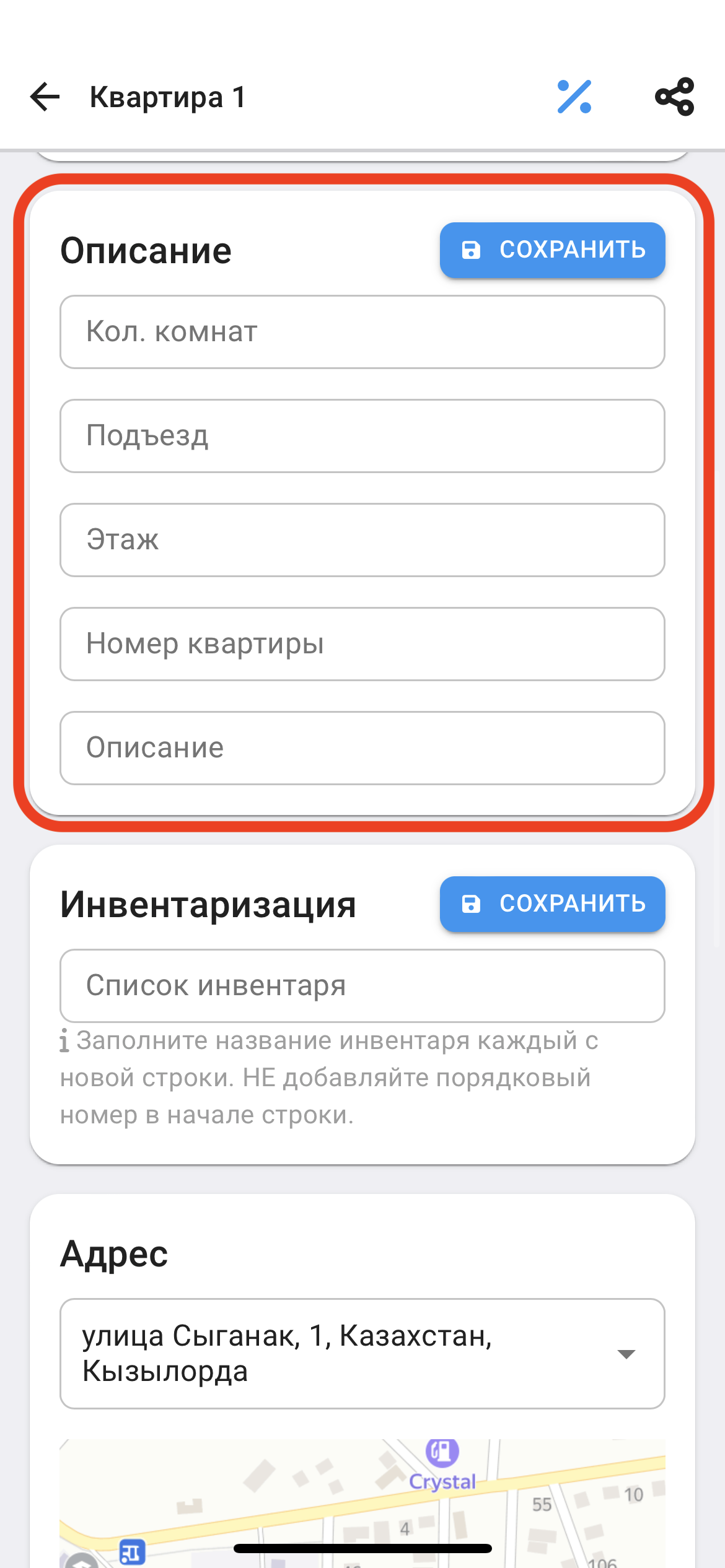
6. To add inventory, in the "Inventory" section, fill in the appropriate lines.
It is important when filling out not to put numbers before the name of the inventory , you can indicate the quantity after the name of the inventory. (Example: Chairs 4)
After filling in, click on the "SAVE" button. (See example below) 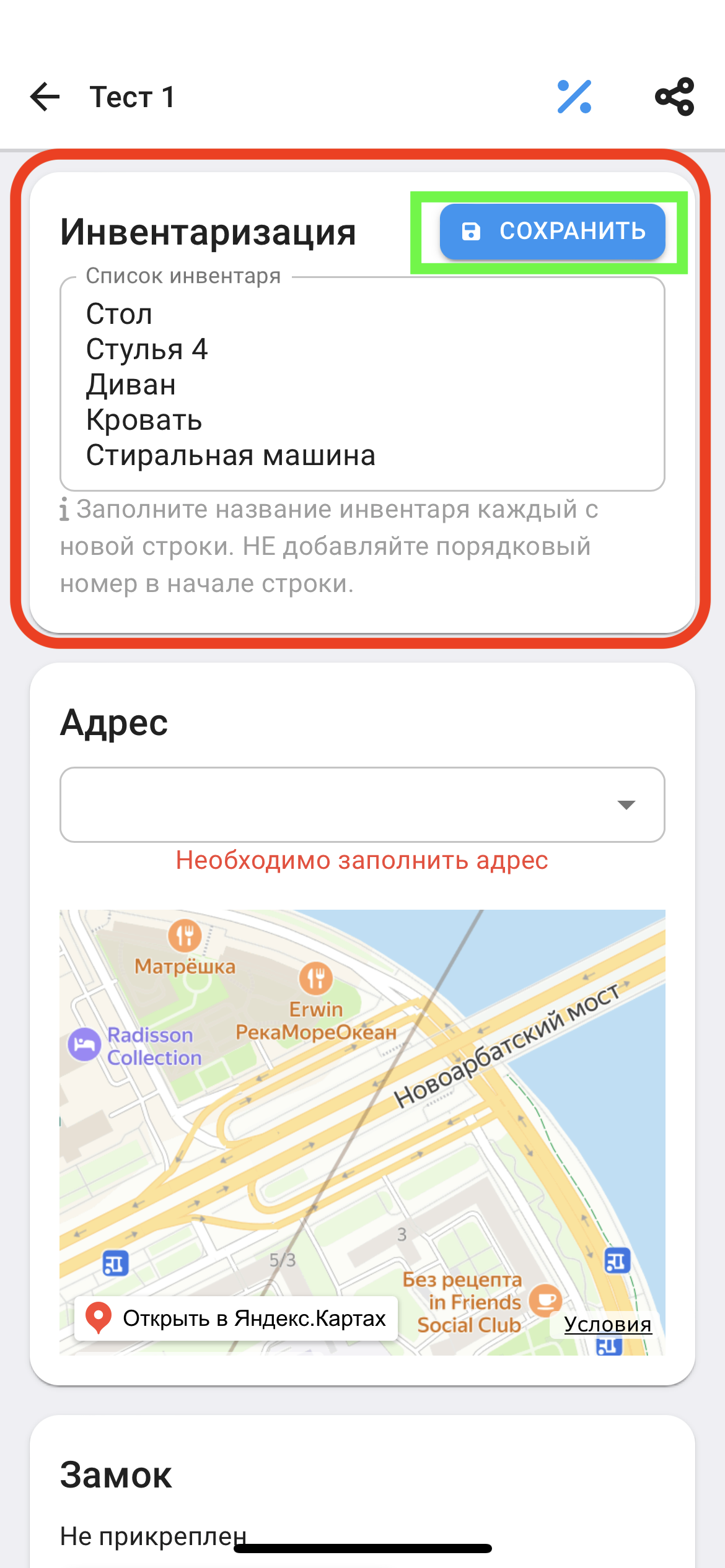
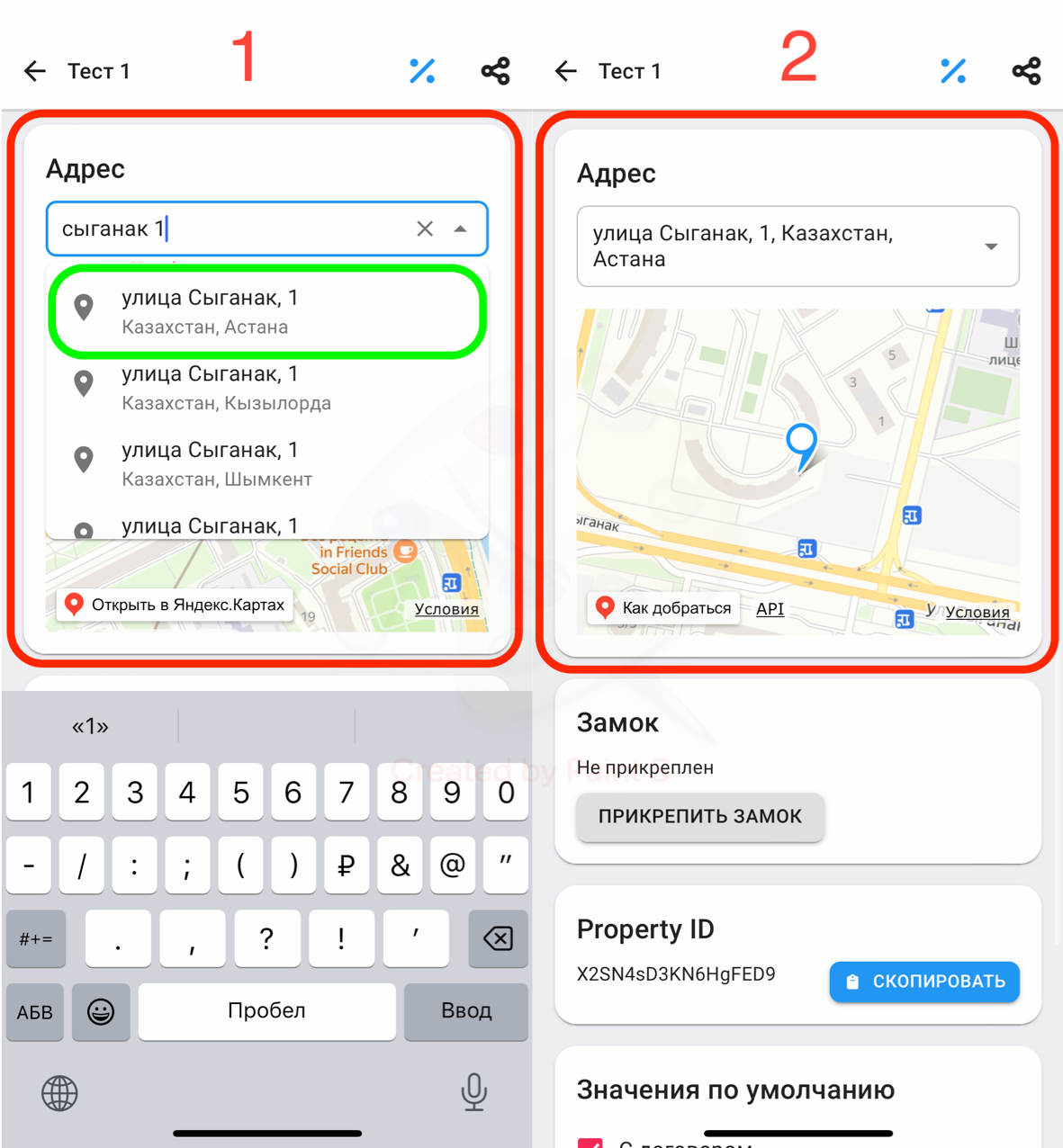
7. The field called “ Address ” is mandatory to fill in, as your castle will be synchronized with the ApartX application, so that the time of delivery of the property corresponds to the selected region/country.
7.1 To add an address, in the "Address" section , fill in the appropriate lines and select the appropriate address. ( see example below)
7.2 It is important to check that the address matches the real address on the map. The map is interactive, you can move the map by holding two fingers at the same time. (see example below)
Adding the property is complete. (see example below)