Creation of a simplified contract
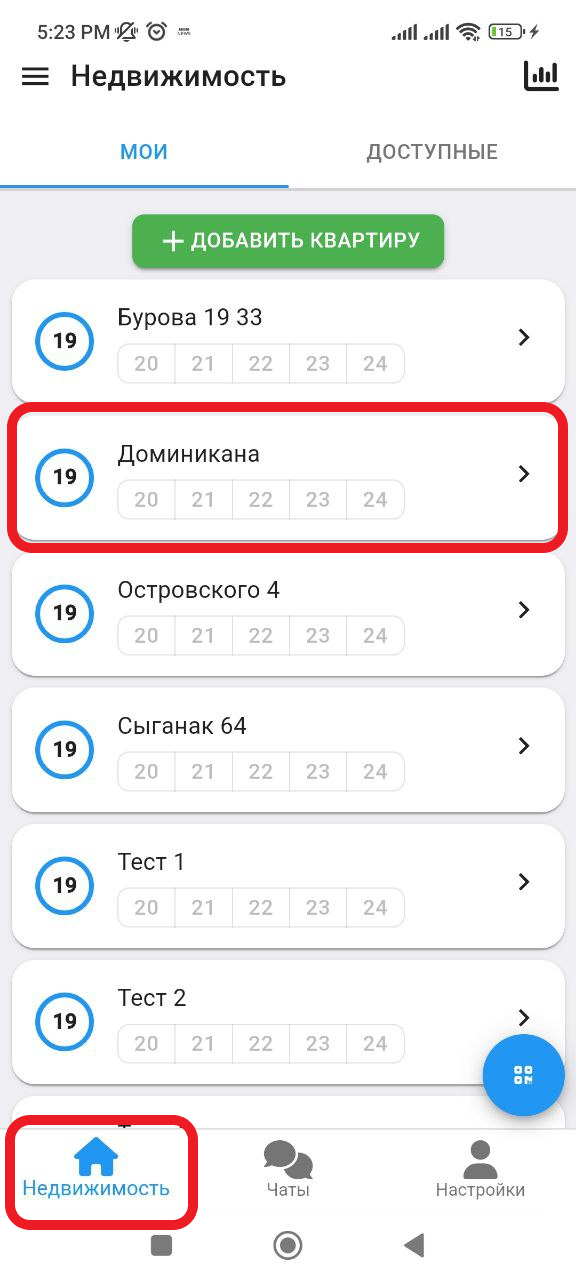
1. In the working window, click on the " Real Estate " button. Then select the real estate in which you want to create a reservation. (see example below)
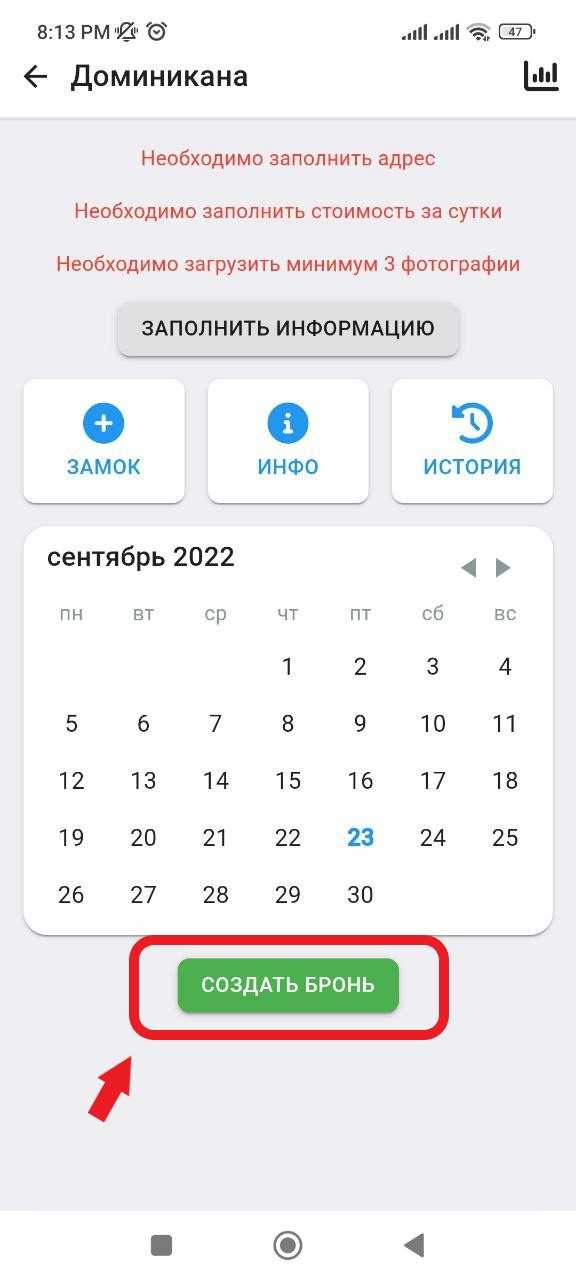
2. In the window that opens, click on the " Create a reservation " button. (See example below)
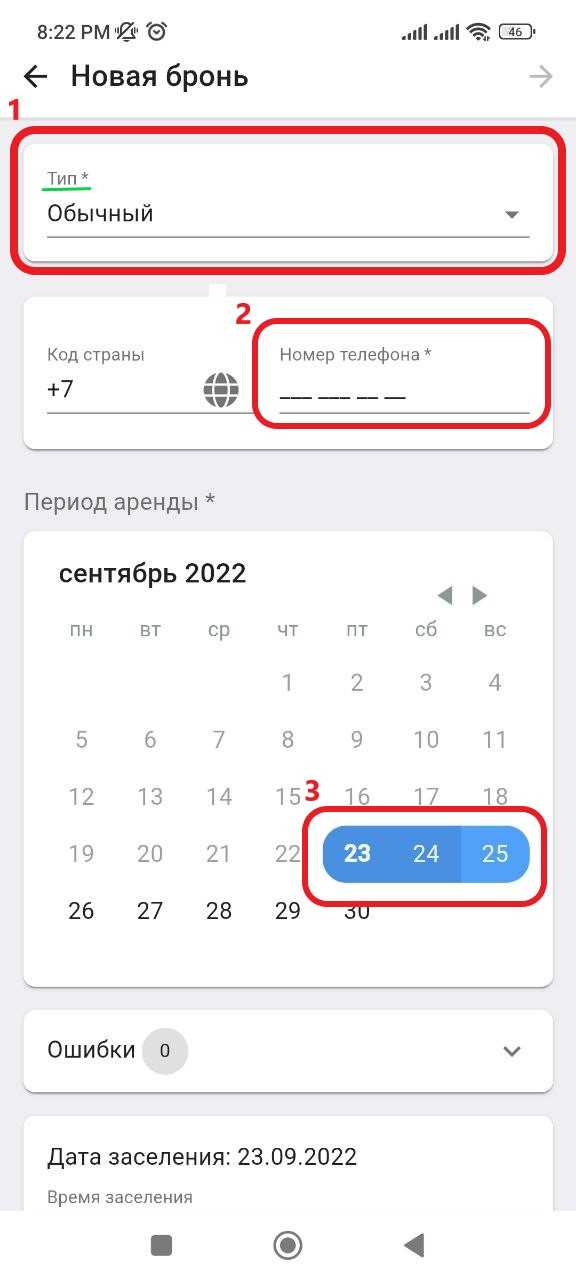
3. In the new window, in the " Type " column, select " Normal ", then enter in the " Phone number " column the contact information of the landlord for whom you are creating a reservation. Also, on the calendar, select the dates for which you want to reserve the property. (See the example below for points)
3.1 To create a reservation with a simplified contract, click on the " Additional " button, select the " With Contract " item (by default, the program has the "With Contract" and Online payment items) . In the column, select " Simplified ", then fill in your client's details, as shown in the example below. After filling in all the parameters, click on the " Send " button. 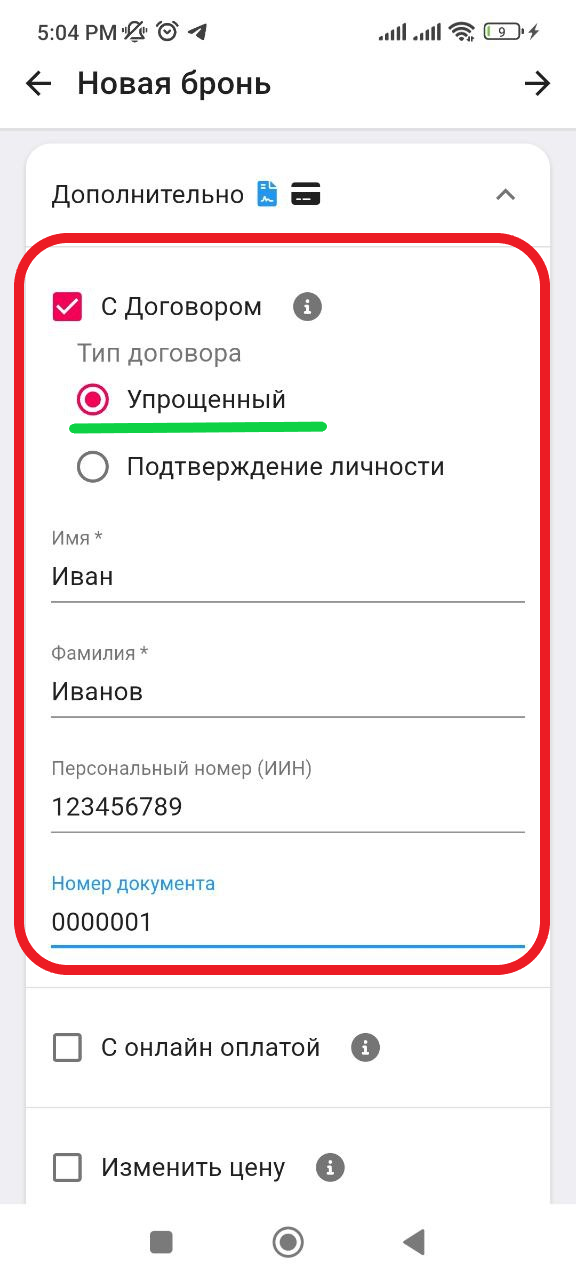
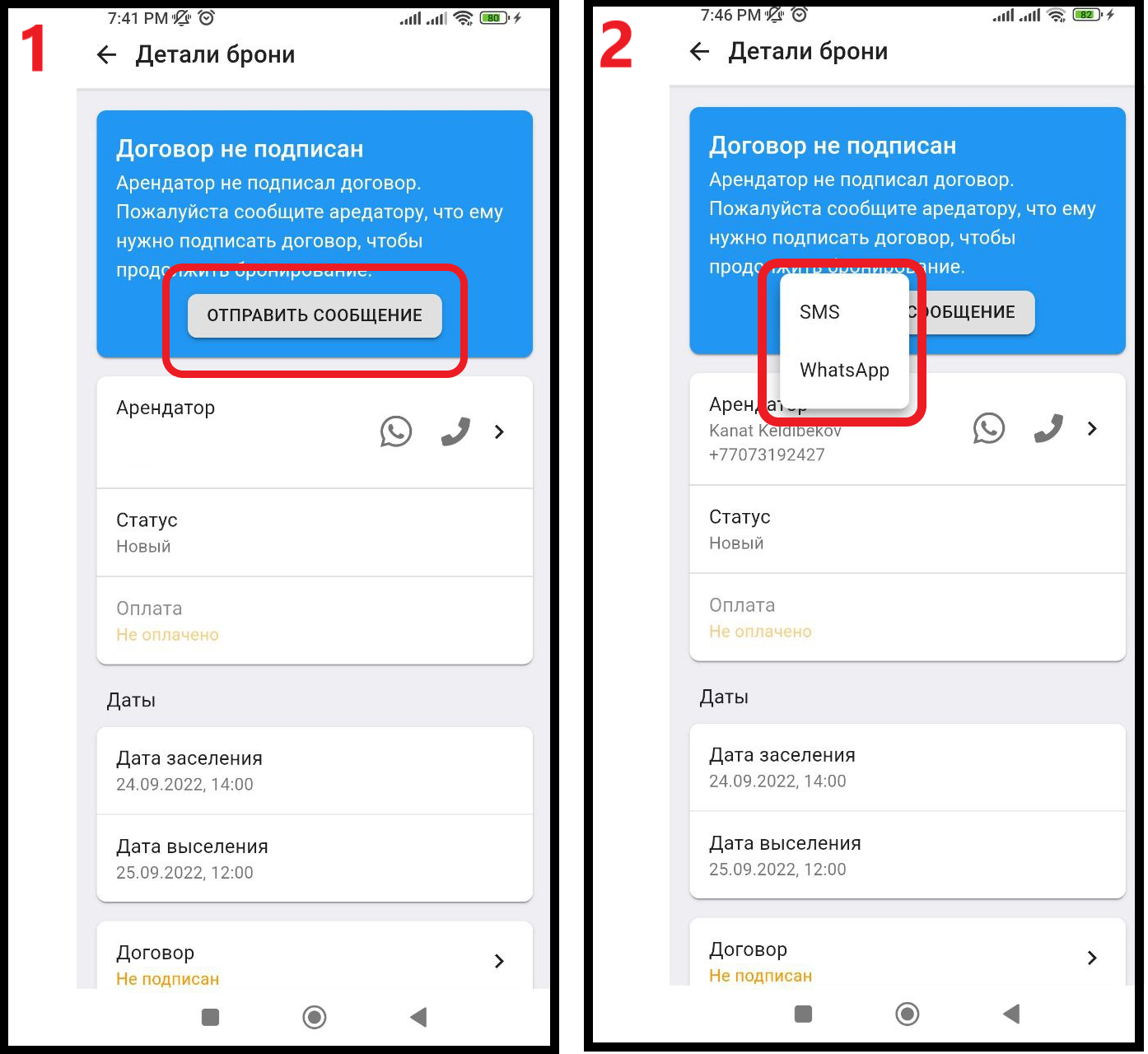
4. Next, to send a reservation with a contract, you will need to click on the " Send message " button, after you have read the warning, click on the " Send message " button again, and select one of the suggested methods of sending SMS or Whatsap.